
Written by Jerome Stewart- D365 Consultant
A Practical Guide for Power Platform Developers
In this blog post, we’ll look at how to use JavaScript to lock all fields on a Dynamics 365 form. Additionally, we’ll cover practical implementation tips and review the core methods that make this approach possible.
Common Use Cases
Organizations often need to prevent users from editing a record when it reaches a specific custom status. However, the record may still need to remain active, meaning the statecode value cannot be changed to Inactive.
In these situations, locking the entire form is often the best solution. Furthermore, developers can selectively unlock specific fields after the form is locked if users still need limited editing capabilities.
Approach: Using JavaScript
To lock fields with JavaScript, you must interact with the controls on the form. In many scenarios, developers use the following method to disable a single field:
formContext.getControl("field_name").setDisabled(true);
However, locking individual fields can become time-consuming on larger forms. Instead, you can loop through every control on the form and disable them all at once.
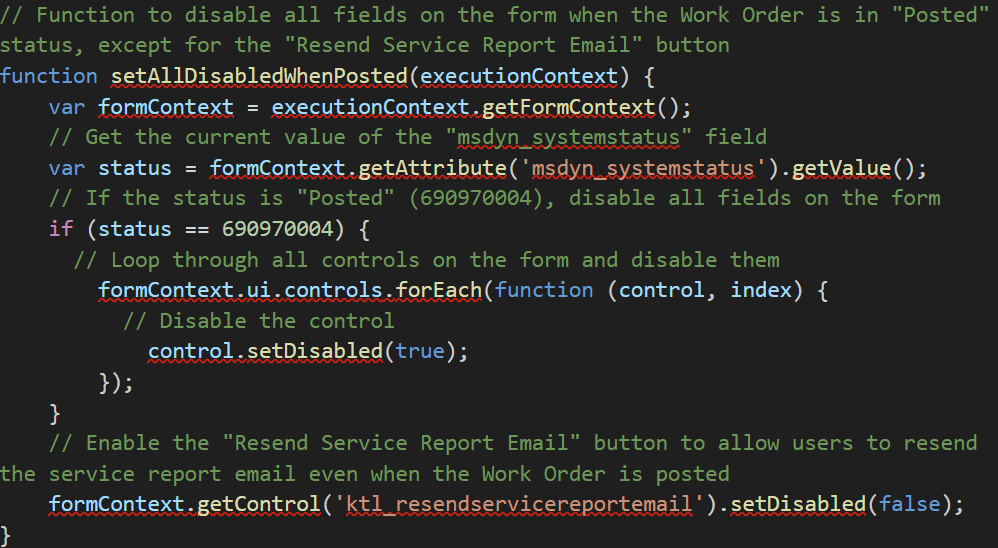
To accomplish this, use the formContext.ui.controls.forEach() method. This approach is more efficient and easier to maintain, especially when forms contain numerous fields.
Step-by-Step Implementation
Follow these steps to lock all controls on a Dynamics 365 form:
- Identify the condition that should trigger the form lock.
- Create a JavaScript web resource in Dynamics 365.
- Add a function that checks the required condition.
- Use a loop to iterate through all form controls.
- Disable each control during the iteration.
- If necessary, add logic to re-enable specific fields afterward.
- Register the JavaScript function on the appropriate form event.
- In most cases, the function should run on the OnLoad event.
- Publish your customizations.
- Finally, test the behavior to ensure it works as expected.
Example Script
Conclusion
The formContext.ui.controls.forEach() method provides a simple and effective way to iterate through all controls on a Dynamics 365 form. As a result, developers can quickly apply actions such as enabling or disabling controls across the entire user interface.
Additionally, this approach reduces the amount of code required to manage large forms. It also makes future maintenance easier. By leveraging this method, you can enforce business rules consistently while delivering a more controlled user experience.