
Written By Cheryl Shepard
Issue: Need to find where the data is stored and the field type and length.
Resolution: There are multiple options to use to find where the data is stored in BC. Here are two effective options that do not require using the ODATA feature.
Option 1:
Use the Help and Support feature
In Business Central, the Help menu item (the question mark in the top-right corner) gives you access to a Help pane that can help you find answers to your questions.
Click on the Help button in the upper right-hand corner of the open page/window in Business Central.

This will open a Help panel on the right-hand side of the open page/window.
At the top of the pane, a card shows a short description of the current page, if one exists.
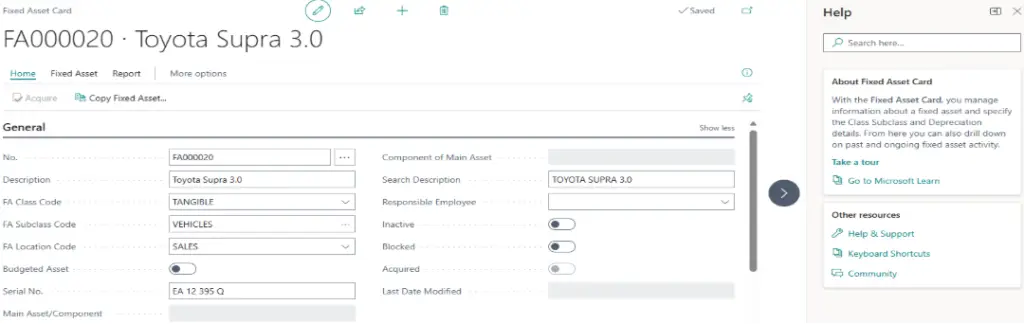
Under Other resources, select Help & Support. This will open an Information page.
From Troubleshooting, select Inspect pages and data. Then, on the right side of the Help panel, a Page Inspection panel will appear.
The page inspection feature enables you to get details about a page, providing insight into the page design, the different elements that comprise the page, and the source behind the data it displays.
The Page inspection pane opens on the side. When the pane first opens, it shows information that pertains to the main page object.
The Page Inspection panel will show the Page name, Table name (ID), and Table Fields. Under Table Fields, there is a listing of the fields by Name with Field Type and Number of Characters. For example, click on the Description field, and it shows that it is a Text field with 100 characters.
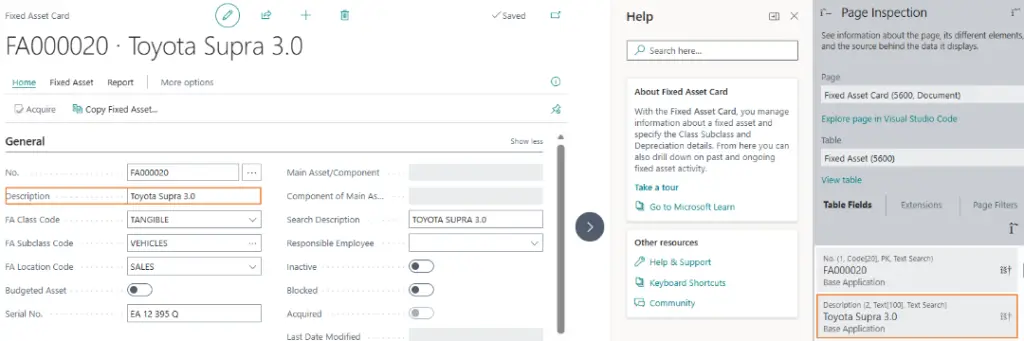
If you do not see the details that you expect to see in the Page Inspection pane, you probably do not have the required permissions.
Option 2:
Create a Configuration Package

Search for the “Configuration Packages” task.
This will open the Configuration Packages window.
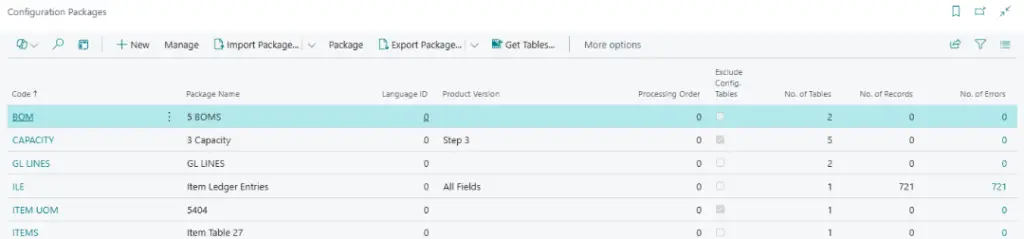
Select New to create the new configuration package.
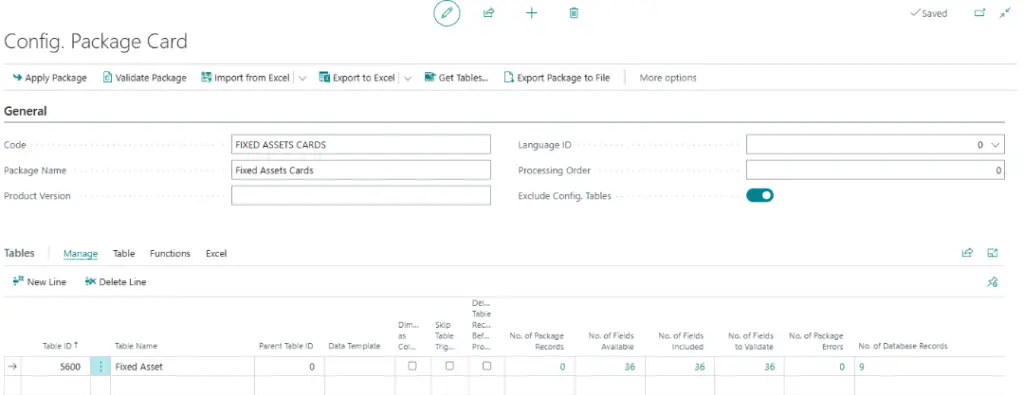
Enter the Code and Package Name. Then click on Exclude Config. Tables.
In the Table ID field, enter the table ID if known or click on the three dots to search for the table ID.
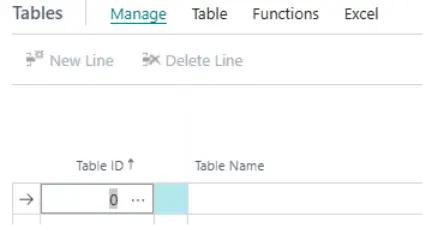
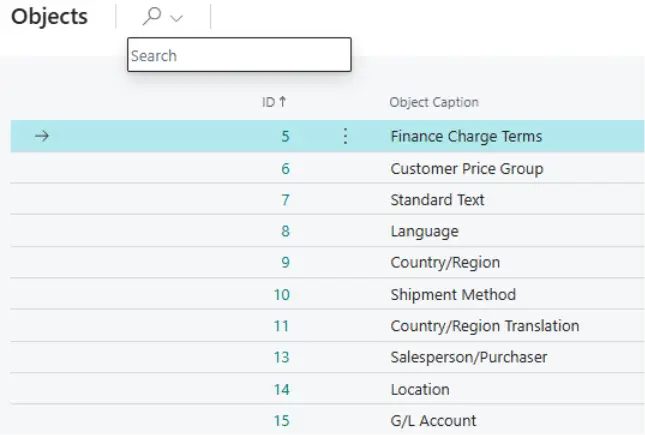
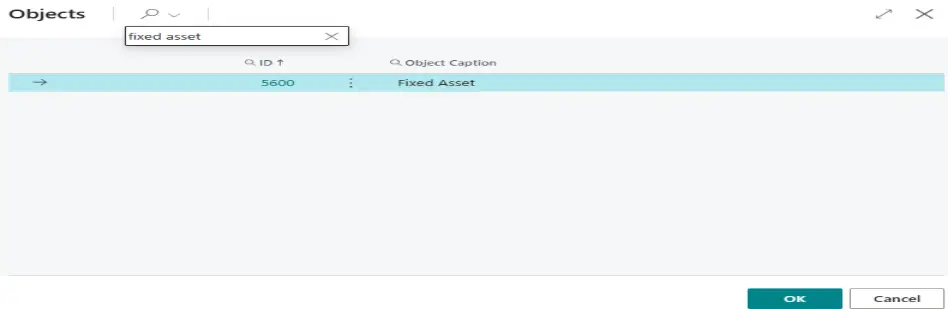
For this example, enter fixed asset in the search box and select OK.
Click on No. of Fields Available to see a listing of all the fields available for this table.
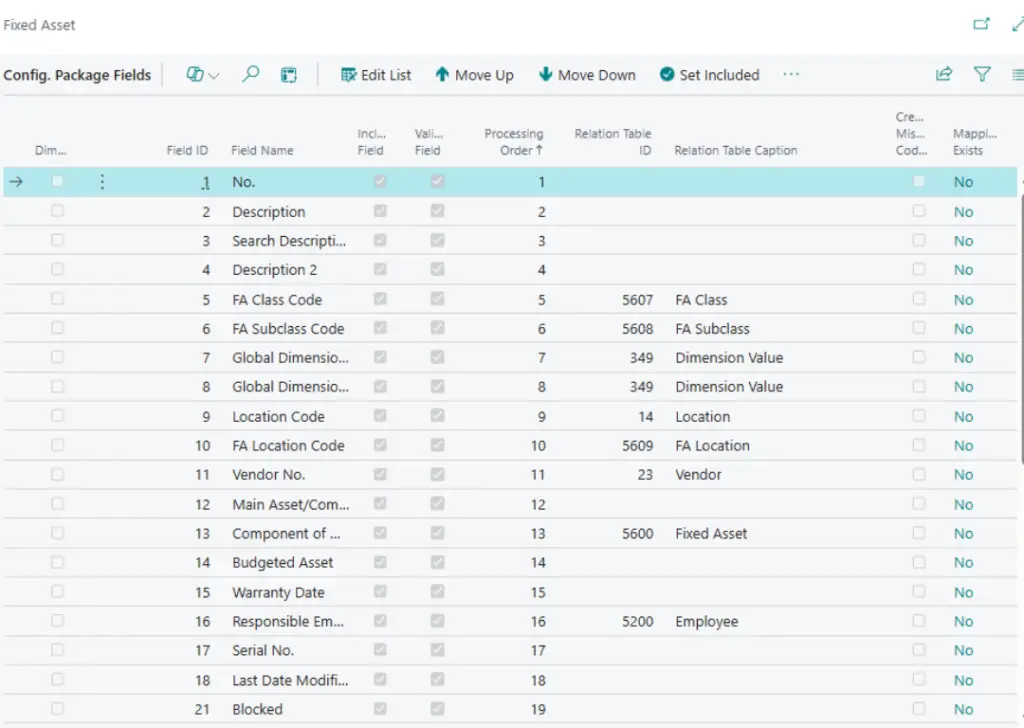
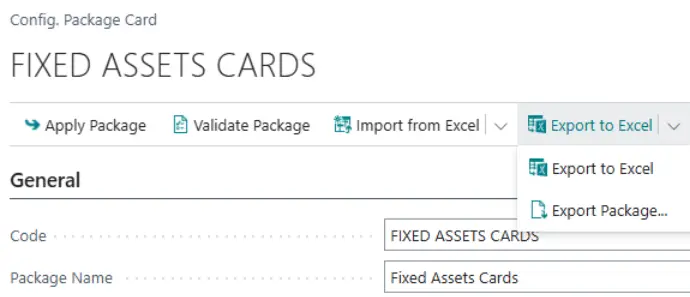
Then, click on Export to Excel to generate an Excel file with all of the fields available.
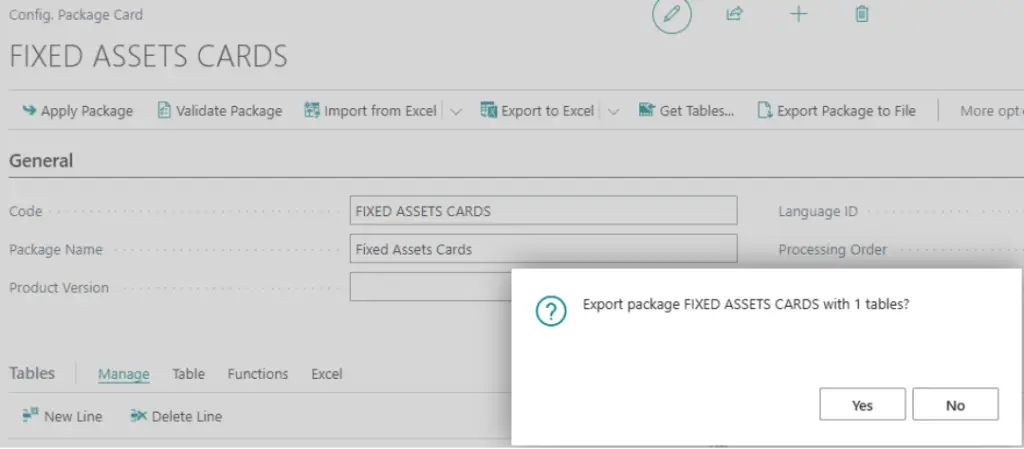
Open the Excel file generated to see the fields as column headers. Click on the red arrow to see the field type and the number of characters for the field.

These are only two of the options available to find information on table fields, field type, and field character length.