
Written By Cheryl Shepard
Issue: The need to redo or modify a year-end close that was performed using Detail for the Main Account only, when the process should have been done by the main account with dimensions instead. When the Trial Balance report is filtered by a dimension, Income Statement (Revenue and Expense) accounts show unexpected beginning balances since the original year-end closing entries were not created with dimension-specific lines.
Resolution: Microsoft suggested using a configuration package to import the correcting entries, but a more efficient and effective path is to re-run the Close Income Statement process and include the dimensions that were missed during the initial close. This will resolve the beginning balances for the Revenue and Expense accounts shown on the reports by dimensions.
Business Central supports re-running the Close Income Statement process for a prior fiscal year, and you can select the Close by Dimensions option, so the closing entries are generated per dimension used to create the general ledger entries.
Re-run the Close Income Statement Process
Search for the “Close Income Statement” task.

When you click on the screen, you will see several options.
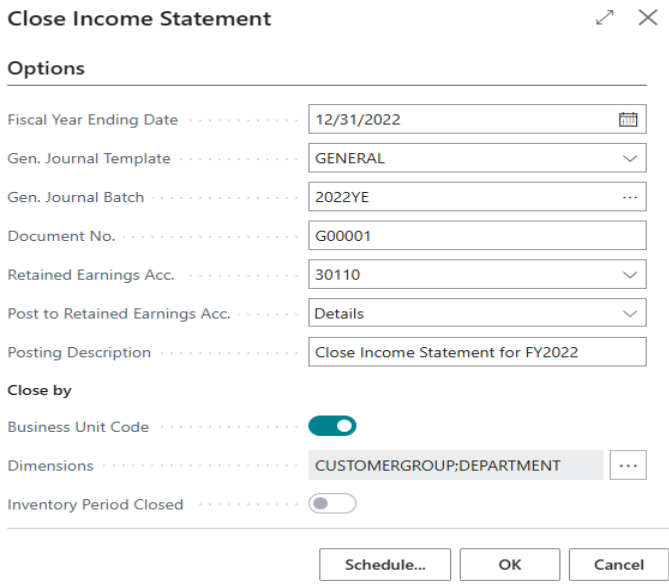
Options:
Fiscal Year Ending Date: First, review and/or enter the Fiscal Year Ending Date. In the example provided, the date is 12/31/22. Ensure that you input the correct year-end date.
General Journal Templates: Next, you will select the General Journal Templates. In this case, you can use the GENERAL template.
General Journal Batch: For the General Journal Batch, it is a good practice to create a batch for each year-end so you can delete it after posting. For example, you might name it 2022YE to keep track of the entries and avoid confusion with multiple batches.
Document Number: Accept the default document number.
Retained Earnings Acc: Ensure the correct Retained Earnings account is used to avoid complications. Using the wrong retained earnings account can lead to complications, requiring you to reverse and redo entries, which can be messy from an audit perspective.
Post to Retained Earnings Account: The next step is to post to Retained Earnings. You can do this in two ways: in Balance or Details.
- Balance: If you choose to post in Balance, the entries will be summarized. The amounts, debits, and credits will be posted to your retained earnings as a summary.
- Details: Alternatively, you can choose to post in Details. This method posts detailed transaction amounts. For instance, you might see multiple lines for an account showing each transaction individually rather than as a summary like Balance.
Posting Description: Provide a Posting Description, such as “Close Income Statement for FY2022”. This description helps identify the purpose of the entries.
Close by
You can close by Business Unit Code and/or by Dimensions.
- Business Unit Code: Close by Business Unit Code if you are dealing with intercompany transactions or multiple companies. This allows you to manage entries specific to each business unit.
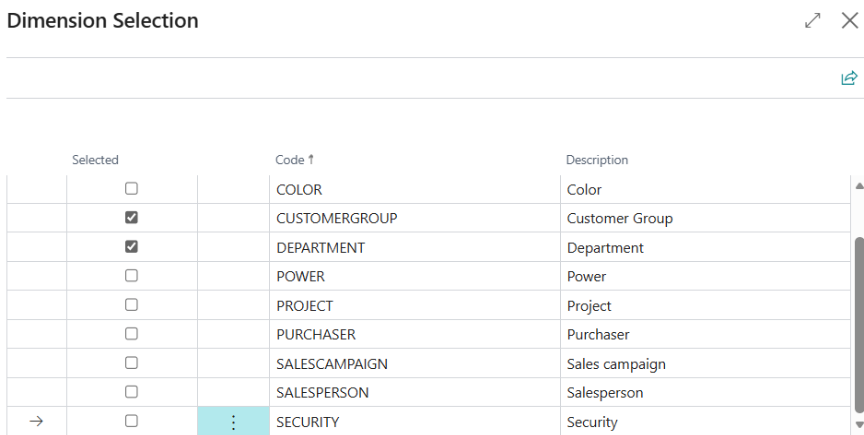
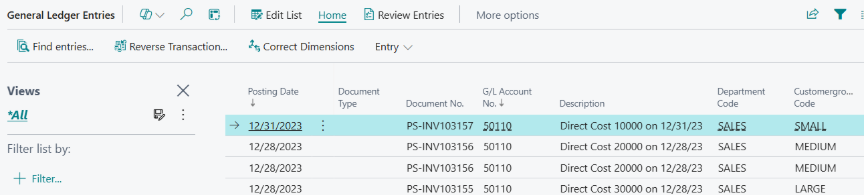
- Dimensions: Closing by dimension allows for more detailed tracking and reporting capabilities. To select your dimensions, click on the three dots in the box, and a display will appear, enabling Dimension Selection. This should be used to close the accounts if a beginning balance is showing for a Revenue or Expense Account on the trial balance by dimensions report after the initial closing process, and should include the Dimension Codes used for the General Ledger Entries.
You can either schedule the Close Income Statement process for a specific time or click OK to process it immediately.
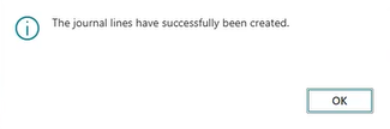
Go to the General Journal Batch to review the closing entry lines. In the general journal batch for year-end, you will see a “C” beside the entries, indicating they are closing entries.
Generate the Test Report with Show Dimensions and download the report to review. Then, generate the Preview Posting and select Open in Excel to review the journal entry transactions with the dimensions.
Once the year-end close batch is reviewed, click on Post and Print.
Run the Trial Balance to Validate the Beginning Balances are Zero for the Income Statement Accounts
The next step is to run the trial balance summary by dimensions as of January 1st of the next fiscal year (e.g., 01/01/23) to ensure the entries flowed properly. This is crucial to ensure that your balance sheet moves into the next year correctly and that your income statement accounts with dimensions are zeroed out on the trial balance.
Generate the trial balance summary by dimensions report and verify that everything is correct. A helpful tip is to export the report to Excel to filter columns if needed.