Written by Jerome Stewart- D365 Consultant
A Practical Guide for Power Platform Developers
In this blog post, we’ll look at how you can use JavaScript to retrieve multiple records and perform form validation in Dynamics 365.
When to Use Retrieve Multiple Records
Many business requirements depend on the status or validity of related records. For example, a user may need to complete all child records before submitting a parent record. In other cases, child records may require validation before the header record can move to the next stage.
By using retrieveMultipleRecords, you can retrieve related child records and evaluate them with JavaScript. You can then display a warning banner, show an error message, or block users from proceeding until they resolve any issues.
Approach: Using JavaScript and the Xrm API
Dynamics 365 provides the client-side Xrm API, which allows developers to interact with forms and controls. The retrieveMultipleRecords method lets you query related records by passing the appropriate parameters.
Step-by-Step Implementation
- First, identify the header record, the child records, and what GUID lookup field ties them together
- Create a new JavaScript Web Resource
- Set up your script passing execution context as the first parameter as normal, and ensure you are getting the GUID of the header record in a variable using a getAttribute to use this dynamically in your filter
- Next, set up variables for Entity, Select, and Filter, all to be passed into the retrieveMultipleRecords
- Entity – Identifies the table you are querying
- Select – Identifies the fields you want to return in the query
- Filter – Identifies the fields/conditions to be used to filter the returned records
- In the example below, this will be that the Quote Lines are for the record we are currently viewing on the form as well as that a custom field new_demo = true
- Invoke the retrieveMultipleRecords method with the variables to get the records
- Xrm.WebApi.retrieveMultipleRecords(entity, select + filter)
- Parse the records as needed. In the scenario used in the below example, we are already using the conditions of the filter to do the parsing, so the only condition we need to then validate for afterwards is whether or not results were found, so we can use results.entities.length > 0
- Perform the necessary actions based on records being found
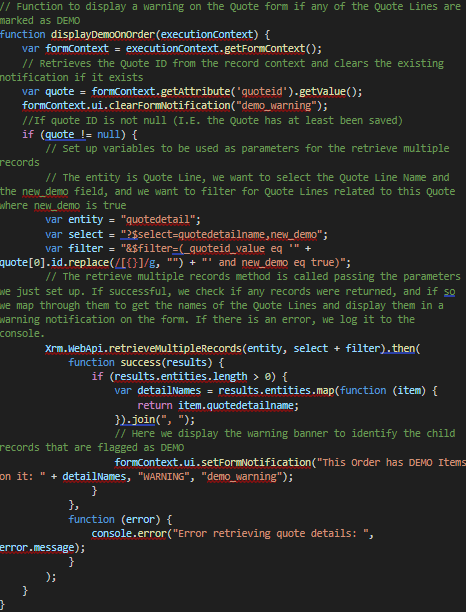
Bringing It All Together
Now that we’ve covered the process, let’s look at the code example. The inline comments explain the purpose of each section and show how the solution works in practice.