
 Written By Argie Radics
Recording a customer payment sounds simple enough. But if you’re using the Cash Receipts Journal in Business Central, one little imbalance can throw your whole journal off. Let’s break down how to get it right — every time.
What Is the Cash Receipts Journal?
The Cash Receipts Journal in Business Central is used to record incoming customer payments. These entries typically apply payments to open invoices and reflect deposits into a bank account.
What Does It Mean to Balance an Entry?
For a journal to post successfully, specific field combinations must be net zero across the entire entry or within the groupings defined by Business Central settings:
- Total Debit Amount = Total Credit Amount across the entire journal batch
- If Force Doc. Balance = TRUE, then:
- Each unique Document No. must also balance (Debit = Credit)
- Each unique combination of Posting Date + Document No. must also net to zero
- If using dimensions, each Dimension Value (e.g., Department, Project) must be considered in reporting to ensure clean financials — though dimensions themselves do not require balancing for posting
- If using a Balancing Account (e.g., via recurring journals), it must properly offset the other lines
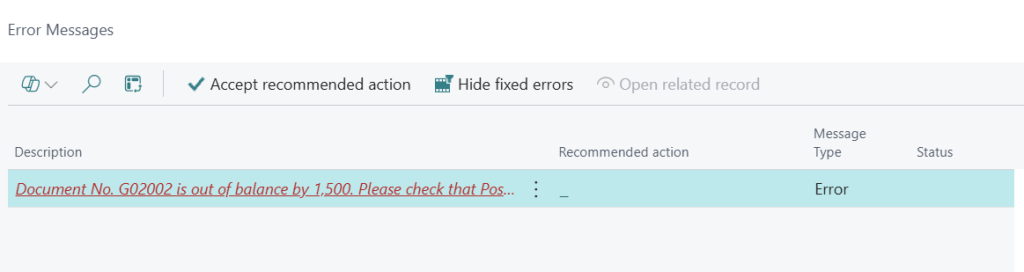
When Does Business Central Enforce These Rules?
- The journal batch or template determines whether document balancing is enforced (via the Force Doc. Balance setting)
- Even without this setting, Total Debit = Total Credit must still be true at the batch level to post
Why Use Document-Level Balancing?
| Benefit | Description |
| Prevents posting errors | Avoids partial or mismatched entries when documents are unbalanced |
| Improves audit clarity | Maintains logical groupings of payment transactions |
| Eases reconciliation | Supports clear matching with customer and bank records |
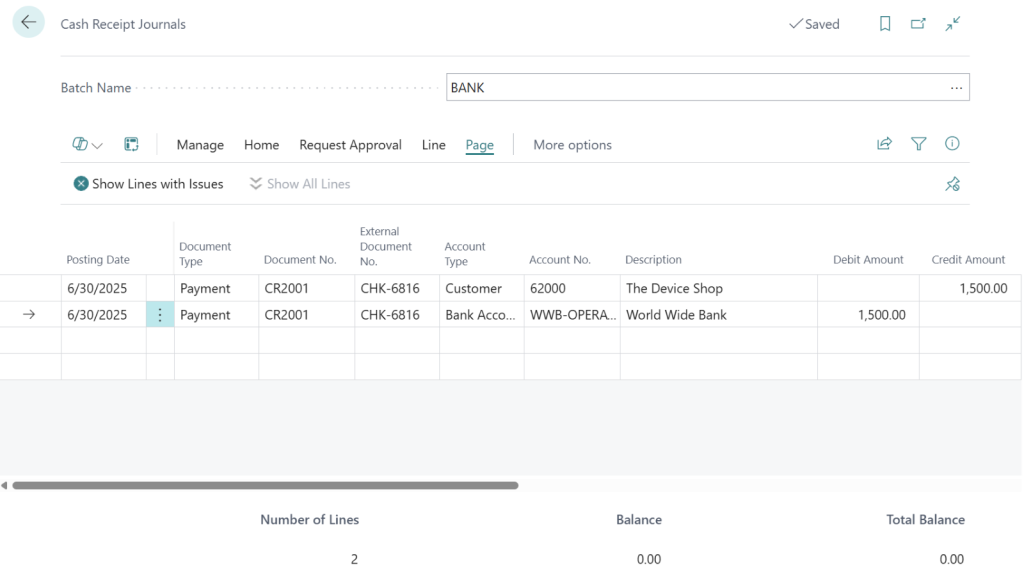
Example: Posting Customer Payments
| Posting Date | Doc No | Ext. Doc No | Acct Type | Acct No | Desc | DR | CR |
| 05/20/25 | CR0001 | CHK-6816 | Customer | 62000 | Device Shop | 1500 | |
| 05/20/25 | CR0001 | CHK-6816 | Bank | WWB OPER | World Wide Bank | 1500 |
This example balances at the following levels:
- Posting Date + Document No. = net zero
- Document No. (CR0001) = net zero
- Journal total = net zero
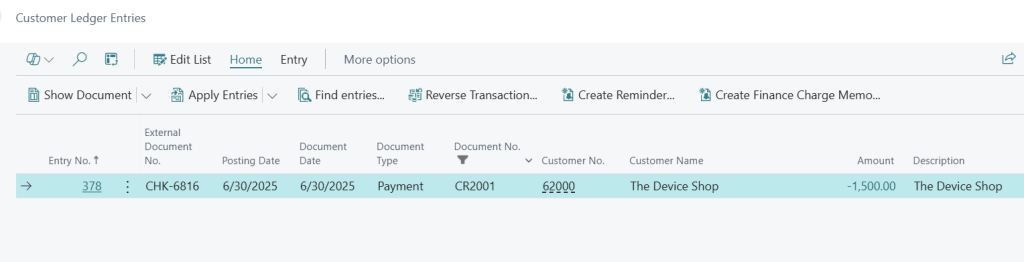
Recording Customer Check Number
| Field | Use |
| External Document No. | Enter the customer’s check number or other payment reference Appears in customer ledger entries and posted documents Helps with traceability and payment matching If not visible, click “Show more columns” or personalize the journal page |
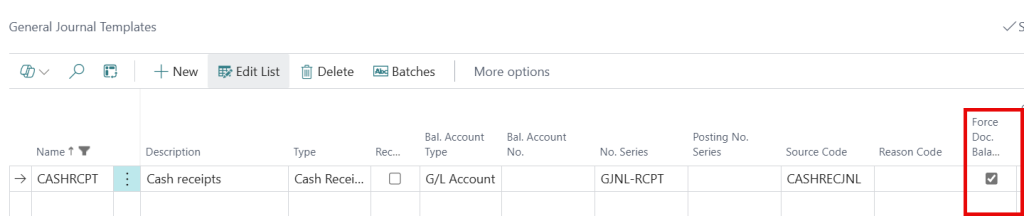
Where to Set Force Document Balance
- Search: General Journal Templates
- Select your template (e.g., CASHREC)
- Set Force Doc. Balance = TRUE
This enforces document-level balancing, requiring all lines for each Document No. to be internally balanced.
Tips for Posting Success
- Assign a unique Document No. per customer payment
- Use consistent Posting Dates to avoid conflicts when document balancing is enforced
- Ensure journal-wide Debit = Credit totals
- If Force Doc. Balance = TRUE, each Document No. + Posting Date combo must also net to zero
- If entries use a Balancing Account, confirm that it offsets correctly