
Written By Jessy Schroeder
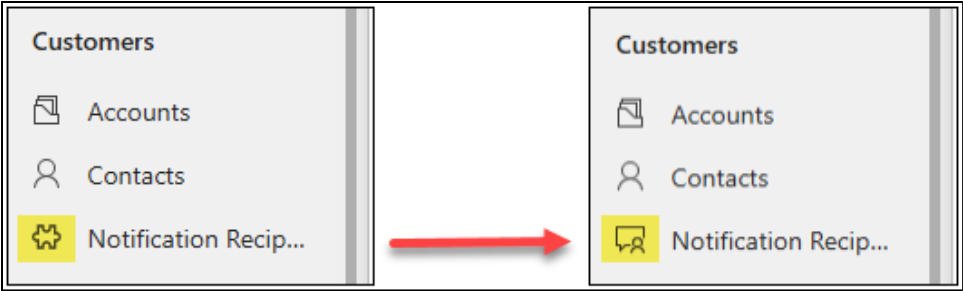
Attention all Microsoft CRM admins and power users! If you’ve ever wondered how to update custom table icons in CRM so you don’t have to stare at the default, boring icon, this guide is for you. Follow these steps to personalize your system and make your tables visually engaging.
Finding Your Icon
You can use existing Microsoft icons, search free icon libraries, or create your own. The only requirements are:
- The icon must be an SVG file.
- It should be under 10 KB in size.
Some recommended sources:
- Flicon – all icons are free.
- Font Awesome – free and paid options.
These sources provide SVG downloads that match the Microsoft CRM style.
Uploading Your Icon
To upload a custom icon:
Save your file. It will now appear in the Web Resources section of your solution, along with scripts and other assets.
Navigate to Power Apps and open your desired environment (production, sandbox, etc.).
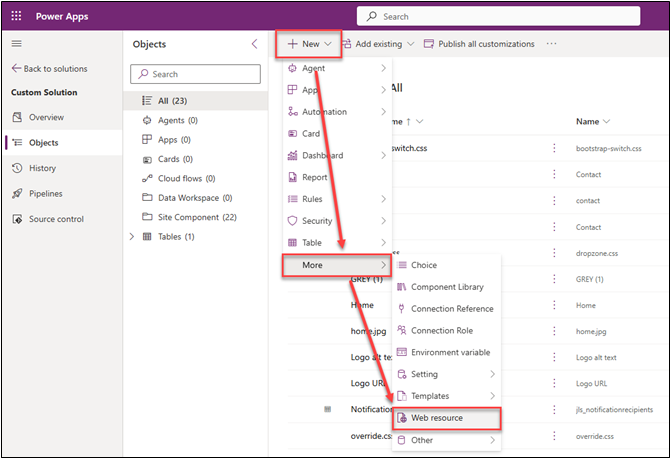
Enter your custom solution and add a new Web Resource: +New > More > Web Resource.
Upload your chosen SVG icon. The system will automatically assign the file type and names. Rename them if needed.
Updating Your Table’s Icon
Now, assign your uploaded icon to a table:
- Open your custom table in Power Apps and access the Properties window.
- Expand Advanced options.
- Scroll to Choose table image.
- Select your icon from the dropdown list. You may need to type the name of the icon to filter it.
- Save and publish your changes.
Refresh your CRM interface, and your table will now display the new icon in the site map.
Additional Tips
- SVG only – PNGs or JPGs are not supported.
- Keep it simple – Icons appear small, so avoid excessive details.
- Maintain consistency – Choose icons that match the theme of other tables for a professional look.
Why Updating Custom Table Icons Matters
Custom icons make your CRM more intuitive and visually organized. Users can quickly identify tables, improving efficiency and reducing mistakes. It’s a small change that enhances the user experience across your CRM system.
Learn More About CRM Customization
For more tips on customizing Microsoft CRM, check out:
Start updating your custom table icons today and give your CRM a professional, polished look!
Ready to make your CRM visually smarter? Start updating your custom table icons now and see the difference in usability and efficiency. Contact KTL today.