
Written By David Reed
Adding QR codes in SSRS reports can greatly enhance report usability, allowing users to quickly access URLs, product information, or other data via mobile devices. While SSRS supports many basic controls, it does not natively render QR codes. This guide explains how to generate QR codes using the open-source QRCoder library and integrate them into your reports.
What Is a QR Code?
A QR (Quick Response) code is a matrix barcode that can be scanned quickly using smartphones or barcode scanners. Invented in 1994 by Masahiro Hara of Denso Wave in Japan, QR codes were initially used to label automotive parts. By 2000, they became an ISO standard and quickly gained popularity in mobile applications. According to Statista, over 90 million smartphone users scanned QR codes between 2020 and 2025.
Unlike regular barcodes, QR codes cannot be rendered as fonts in SSRS and must be generated as images. SSRS supports rendering images from databases, but this approach is impractical for dynamic QR codes. Instead, we can use external .NET libraries to generate these images.
Step 1: Obtaining a QR Code Library
To generate QR codes, you’ll need a .NET library. For this tutorial, we use the open-source QRCoder library:
QRCoder GitHub Repository
- Download the QRCoder NuGet package: https://www.nuget.org/packages/qrcoder/
- Rename the
.nupkgfile extension to.zipand extract it. - Locate the QRCoder.dll in the
lib\net40subfolder.
Step 2: Setting Up the Library on the SSRS Server
To allow SSRS to use the library:
Verify your SSRS instance using Windows Services (Start → Services → SQL Server Reporting Services).
Copy QRCoder.dll to the SSRS bin folder. Default path: C:\Program Files\Microsoft SQL Server\MSRSXX.MSSQLSERVER\Reporting Services\ReportServer\bin (Replace XX with your SSRS version.)
Ensure you have administrator rights on the server.

Step 3: Configuring the SSRS Report
- Open Report Builder.
- Right-click outside the report area → Report Properties.
- Click References → Add → select
QRCoder.dll. - Go to Code → paste the following code:
Public Function QRCoderByteArray(ByVal inputString As String) As Byte() Return QRCoder.PngByteQRCodeHelper.GetQRCode(inputString, QRCoder.QRCodeGenerator.ECCLevel.Q, 20, True) End Function

Step 4: Adding the QR Code Image to the Report
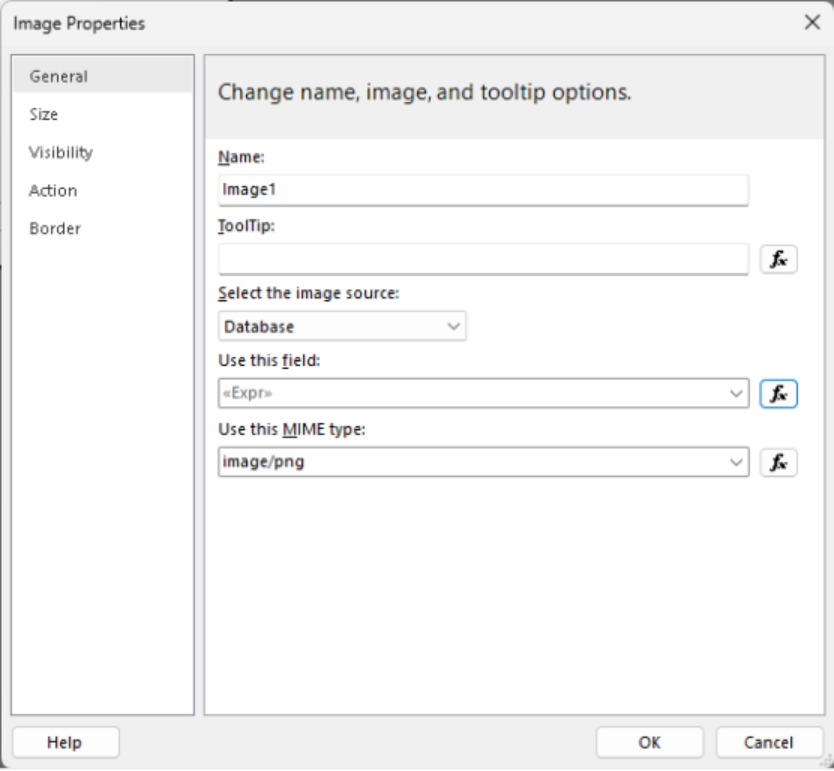
- On the Insert ribbon, click Image, then place it on the report.
- Right-click the image → Image Properties.
- Set Image Source to Database and MIME type to
image/png. - Click the expression icon → enter:
=Code.QRCoderByteArray(Fields!YourField.Value)(ReplaceYourFieldwith the dataset field containing QR code data.) - Run the report. If the image does not appear, verify the code and check SSRS log files:
C:\Program Files\Microsoft SQL Server\MSRSXX.MSSQLSERVER\Reporting Services\LogFiles
Tips for Effective QR Codes in Reports
- Use short URLs or concise data to avoid overly dense QR codes.
- Ensure the image size is readable on printed reports.
- Combine multiple fields using expression functions if needed.
Need Help with SSRS and QR Codes?
KTL Solutions provides expert guidance on SSRS report customization. We help organizations integrate features like QR codes, optimize workflows, and improve reporting efficiency. Contact us for best practices, improvements, and software customization.