Written By Jessy Schroeder
In Microsoft Dataverse environments, data storage limits consist of an initial allotment provided by Microsoft that can then be increased based on the number of user licenses an organization purchases and any extra storage amounts purchased. It is important to keep an eye on your organization’s data storage capacity, as larger databases tend to have slower performance and can affect data handling. If your organization goes over your allotted amount of storage capacity, this can also cause extra charges from Microsoft to support your database.
Follow our step-by-step guide below to review your organization’s data storage capacity limits and review where your organization’s tenant or individual environments fall within the current capacity. If you have any questions about your storage or wish to purchase more space, KTL Solutions is always here to assist!
Step-by-Step Guide
To complete any of the steps below, you will need to have a user license that allows you access to Power Platform Admin Center. This includes holding a tenant administrator, Power Platform administrator, or Dynamics 365 administrator license.
Tenant Dataverse Storage Overview
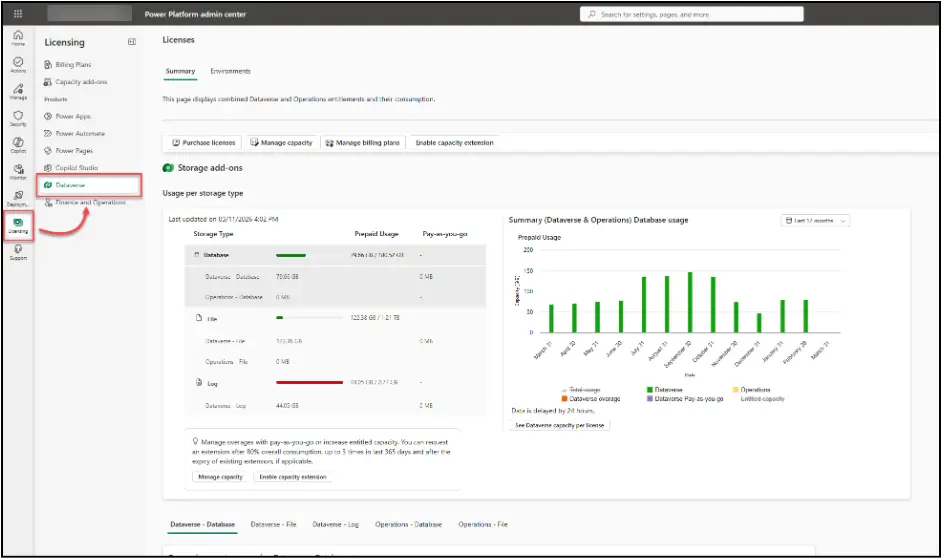
Log into your organization’s Power Platform Admin Center (www.aka.ms/ppac) and navigate to Licensing > Dataverse. This page will give you an overview of your organization’s usage across all Dataverse environments in that tenant. Microsoft breaks down storage into three categories:
- Database – The tables and records in your system
- File – Attachments, annotations, files/images, Web Resources, etc.
- Log – Audit logs, plugin trace logs, elastic tables
The first view will show your organization’s storage broken down by these three categories for the entire tenant.
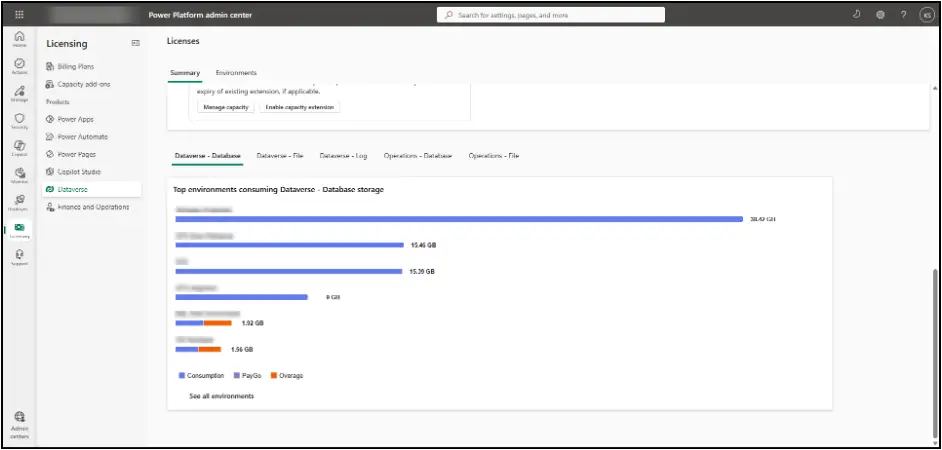
Scrolling down on this Summary page will provide you with a breakdown per environment and per storage type. This is where you can take a quick look at which environment may be taking up too much storage space.