
Written By Jessy Schroeder
Microsoft CRM systems have the option to turn on auditing features that track record changes such as who made the change, what the change was, and when the change was made. This auditing by Microsoft is designed to meet the auditing, compliance, security, and governance policies of many regulated enterprises.
Audit tracking in CRM can be updated at the environment level, at an entity (table) level, and a field (column) level. Follow the steps below to review how you can start better auditing your CRM system.
Enable Auditing at the Environment Level
Auditing can be turned on or off at the entire environmental level. If it is turned off, no auditing will occur for any tables or fields, regardless of their individual auditing statuses. If it is turned on for the environment, it will then begin to audit changes made to any tables and fields that also have it turned on at their individual levels.
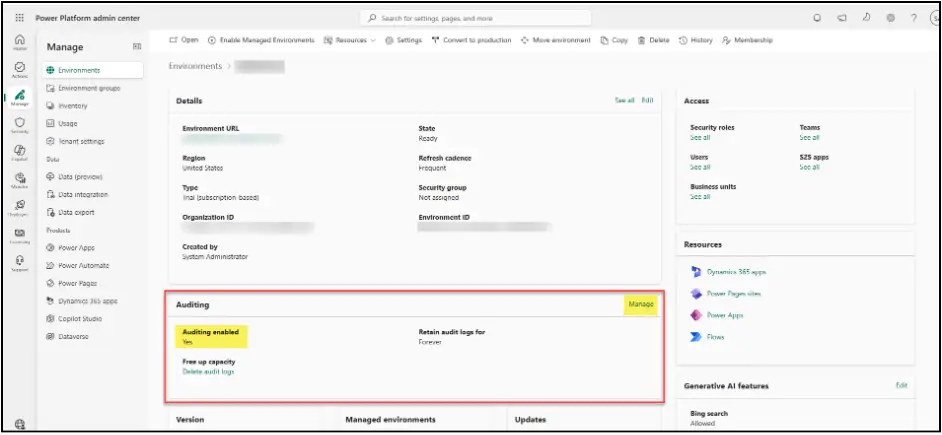
To update auditing for the entire environment, you will need to have a user license that allows you access to Power Platform Admin Center (www.aka.ms/ppac). Once logged into the Admin Center, navigate to Manage > Environments. Select the environment where you wish to turn on auditing. On the environment’s home screen, there will be a section dedicated to auditing.
Note the area that displays whether auditing is turned on or off currently. Click on Manage to update this setting. This can also be accessed on the environment home page by going to Settings > Audit and logs > Audit settings.
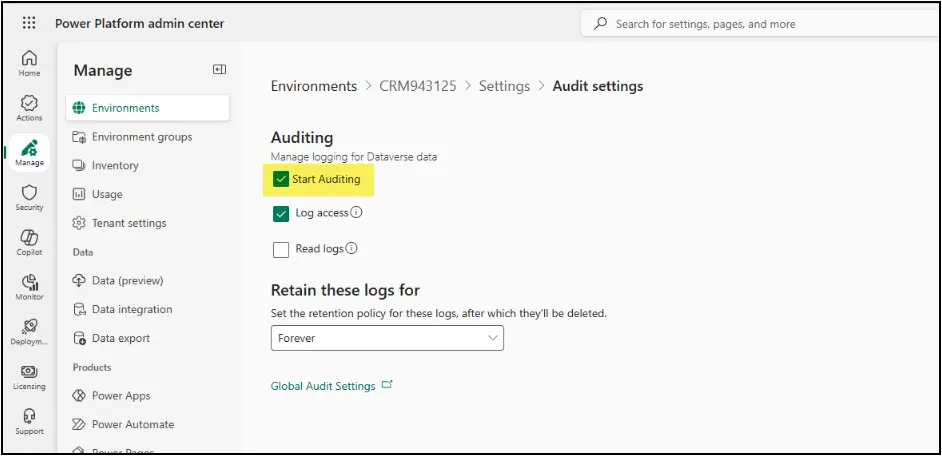
When in the Audit Settings, set Start Auditing to Yes and save to turn it on for this environment. This area is also where you can also set auditing for user logins and when users view specific records, as well as set your global retention policy for any of the audit logs in this environment.
Enable Auditing for Entities (Tables)
Although auditing may be turned on for your environment, it won’t start tracking auditing for specific entities until that entity also has auditing turned on. Some Microsoft entities have their auditing turned on by default (if the environment’s auditing is turned on), so your organization should review if there are any base entities where you also wish to turn auditing off.
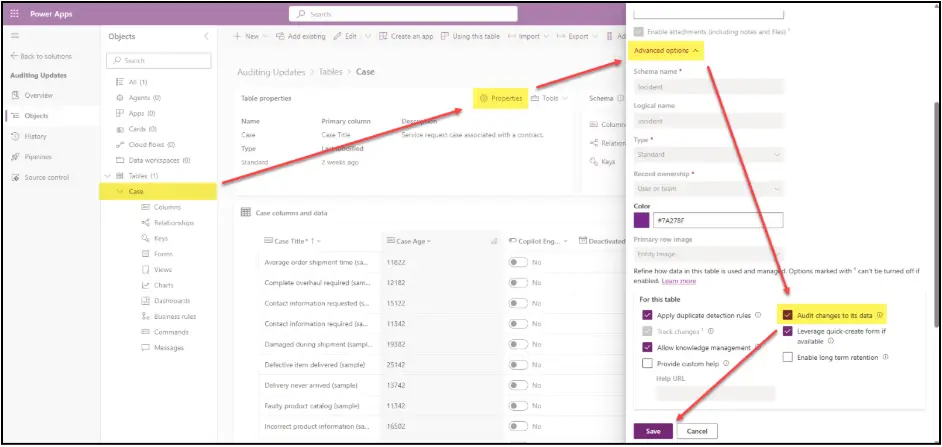
To check and update an entity’s auditing, log into Power Apps (make.powerapps.com) with a user that has System Administrator or System Customizer security roles. Open the solution you wish to make your changes in and find (or add) the desired entity.
Within that entity, select the Properties setting, which will open a side panel. Expand the Advanced options of this side panel and either enable or disable the Audit changes to its data setting.
Enable Auditing for Specific Fields (Columns)
For many base Microsoft entities, if an entity has auditing enabled, it will automatically turn on auditing for all fields on that entity. For any custom entities your organization has created, you may need to individually turn on each field from that entity you wish to audit. It is also a good idea to turn off individual field auditing on any fields that you do not need to track auditing for, as unnecessary audit tracking can eat up your organization’s database storage capacity.
To update a field’s individual auditing status, navigate to the Columns section of an entity within Power Apps and select the field you wish to update/check. A side panel will appear with that field’s settings. Expand Advanced options and set the Enable auditing setting.
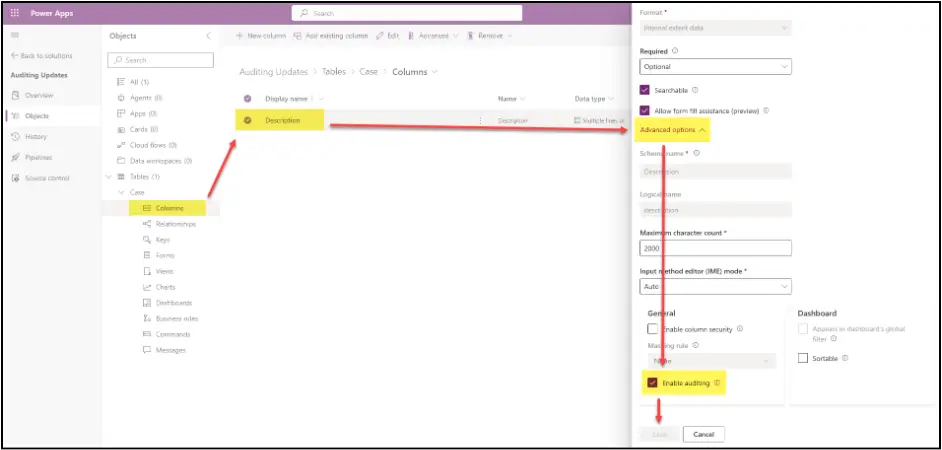
Once this is enabled, it will track any changes to this individual field for that entity (as long as the entity auditing and environment auditing are also turned on), and if disabled, it will no longer track changes to that field at all.
Final Steps and Review
After updating any auditing settings for entities or fields, make sure to publish the solution where you made the changes.
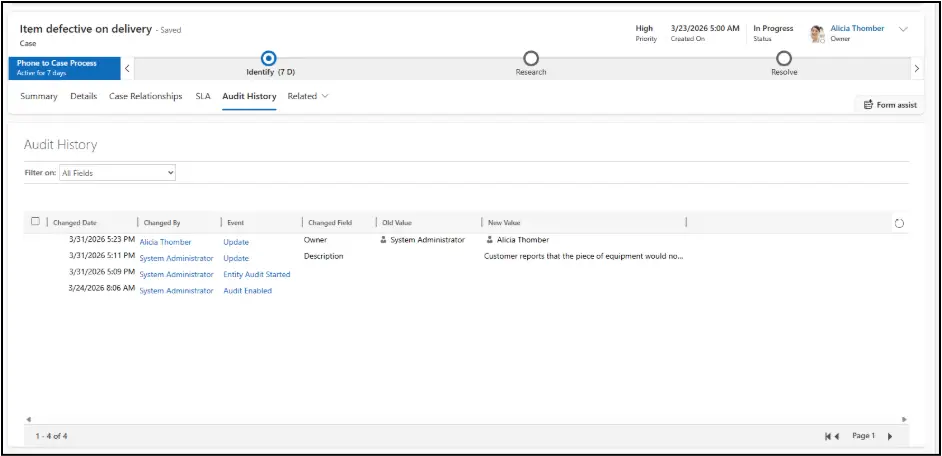
When checking the audit history on a record, it will list a row for any eligible field that has been updated and will show the date it was updated, who updated it, which field was updated, what the old value was, and what the new value is.
Any row that lists “Audit Enabled” or “Audit Disabled” notes when auditing was turned on or off at the environment level. While any row stating “Entity Audit Started” or “Entity Audit Stopped” shows when auditing was turned on or off for that particular entity.
Best Practices
- Be aware of how many entities and fields have auditing turned on for your environment. Auditing can increase database storage fairly quickly.
- It is best to enable auditing on only critical entities and important fields.
- Auditing can always be turned on and back off if only needed for a short period of time.
- Keep auditing to a limited amount in any sandbox or development environments to save on log storage capacity.
- Plan for periodic audit log cleanup.