Written By Cheryl Shepard
Dimensions are essential in Business Central for effective data analysis. Should an incorrect dimension be applied to posted general ledger (G/L) entries, Business Central provides tools to facilitate their correction. These tools are designed exclusively to support accurate financial reporting.
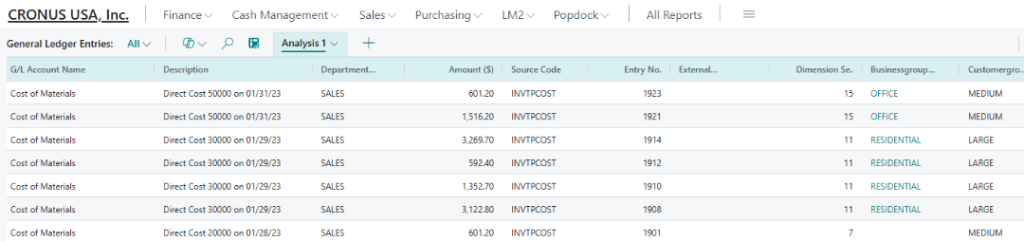
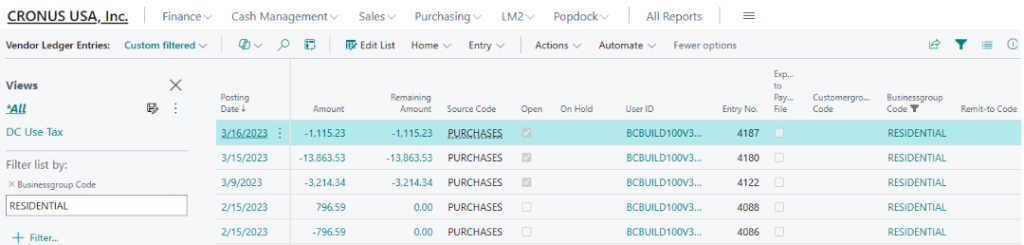
It is important to note that dimension corrections are applied solely to G/L entries. These corrections do not extend to entries in other ledgers (sub-ledgers) related to the same transaction. Consequently, a discrepancy will exist between the dimensions assigned in the general ledger and those in the sub-ledgers.
A further limitation pertains to the volume of data requiring correction. It is recommended that data sets for correction not exceed 10,000 entries.
One way to address these issues is to use the Import Export Power Tool to update the Dimensions Set Entry table.
Dimension Sets
A dimension set is a unique combination of dimension values. It is stored as dimension set entries in the database. Each dimension set entry represents a single dimension value. The dimension set is identified by a common dimension set ID that is assigned to each dimension set entry that belongs to the dimension set.
Instead of explicitly storing each dimension value in the database, a dimension set ID is assigned to the journal line, document header, or document line to specify the dimension set. When a journal line is created, the document header or document line can specify a combination of dimension values.
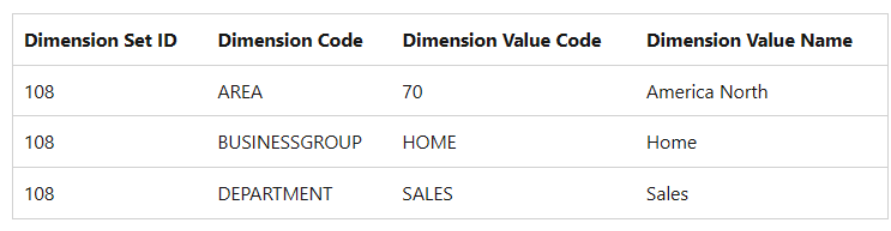
The following example shows a dimension set that has three dimension set entries. The dimension set is identified by a dimension set ID, which is 108.
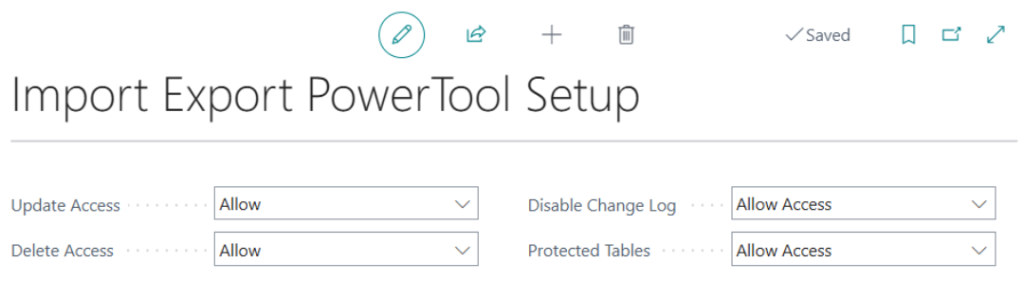
The first step in the process is to review and modify, if necessary, the Import Export Power Tool Setup:
Search: Import Export Power Tool Setup
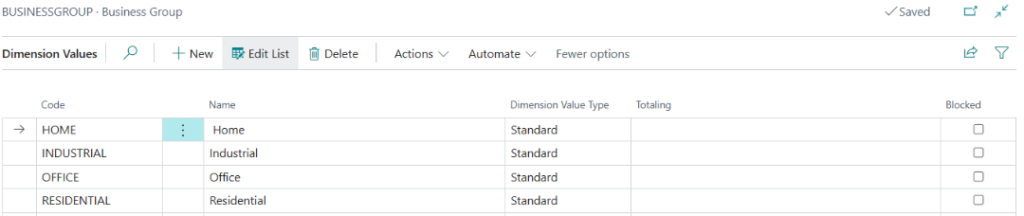
In this example, the client wants to change the dimension for the BUSINESGROUP from HOME to a new dimension code of RESIDENTIAL throughout the system.
To do so, the client must use the Import Export Power Tool (search for the Import Export Power Tool) shown below:
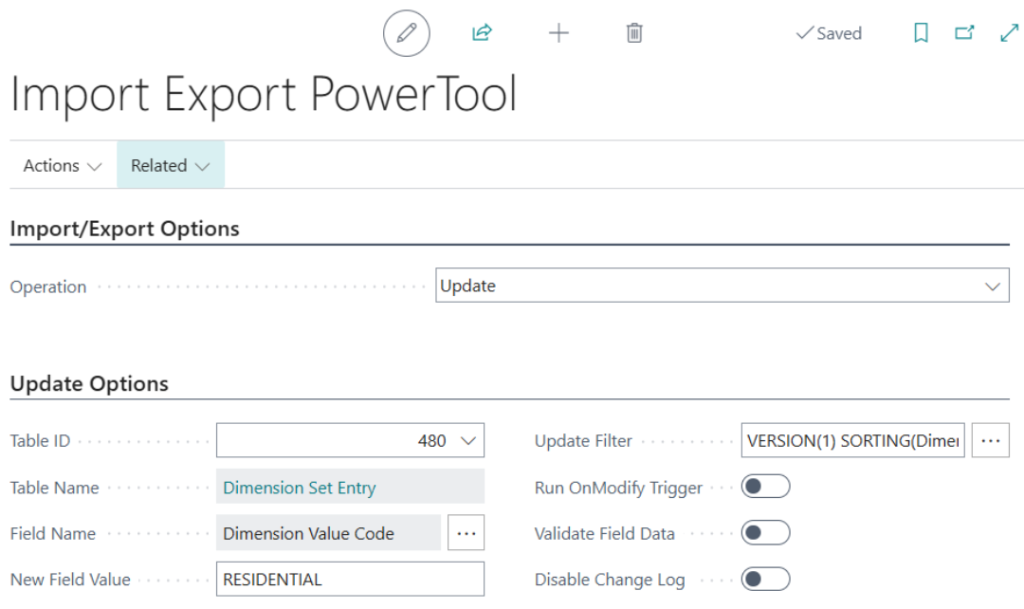
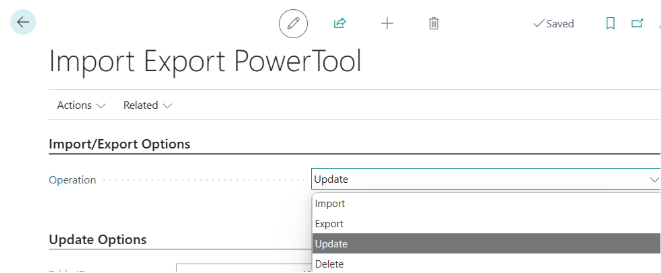
For Operation, select Update:
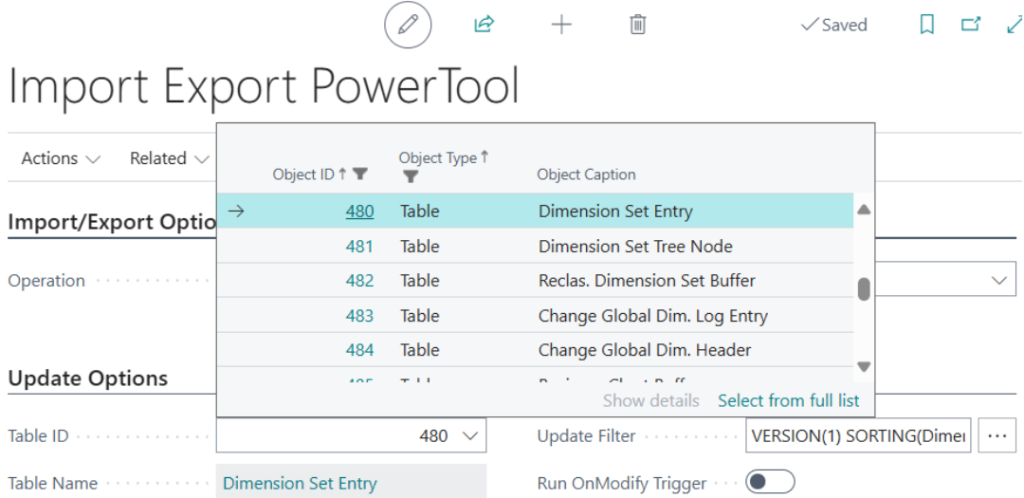
Under Update Options, select the Table ID by using the dropdown button:
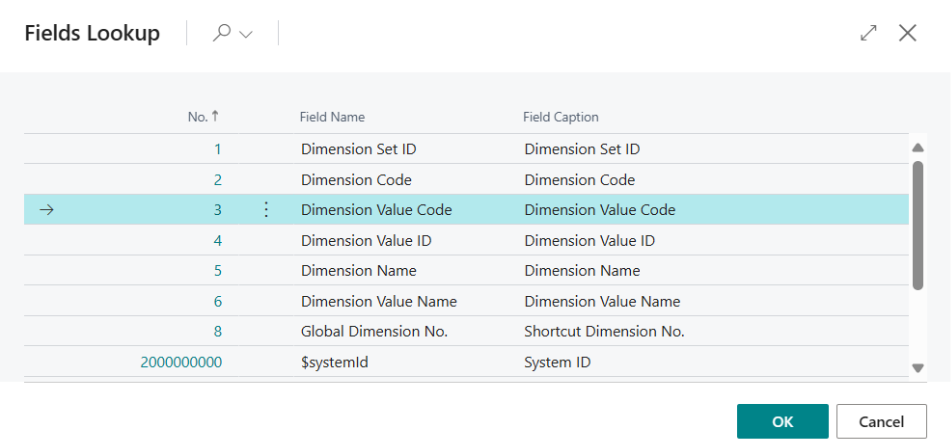
Select the Field Name by clicking on the ellipse (three dots):
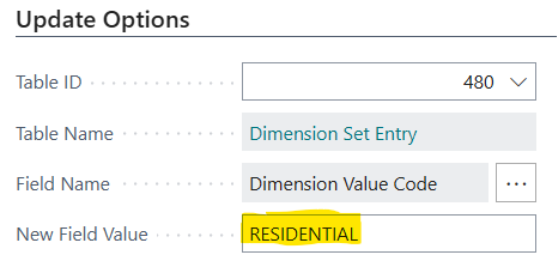
Enter the New Field Value manually:
Use the Update Filter to search for the Dimension Value Code to be replaced by clicking on the ellipse (three dots):
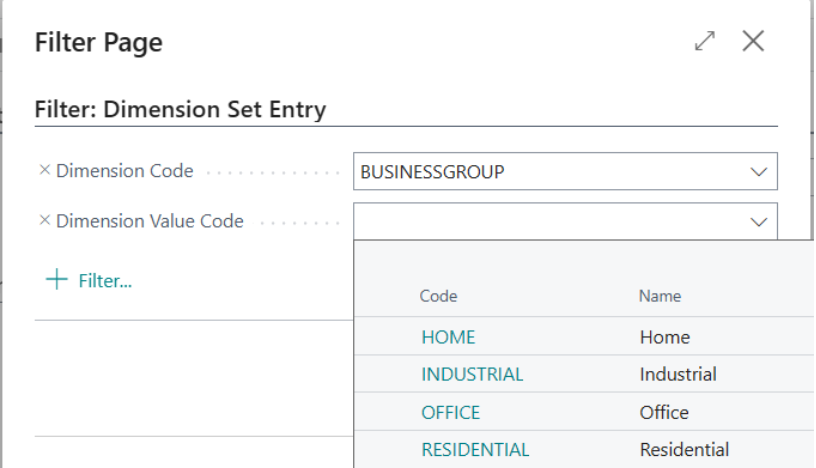
Select the Dimension Code by using the dropdown button and clicking on the code.
Then, select the Dimension Value Code by using the dropdown button and clicking on the code.
The filter will restrict the update to the specific Dimension Code and Dimension Value Code for the update.
It is very important to confirm the selections before running the update. It is recommended to run the update using a Test company or in the sandbox environment.
Once the update selections are confirmed, click on Actions, then Update Data. This action will update the table for the specified table field using the specified filters.
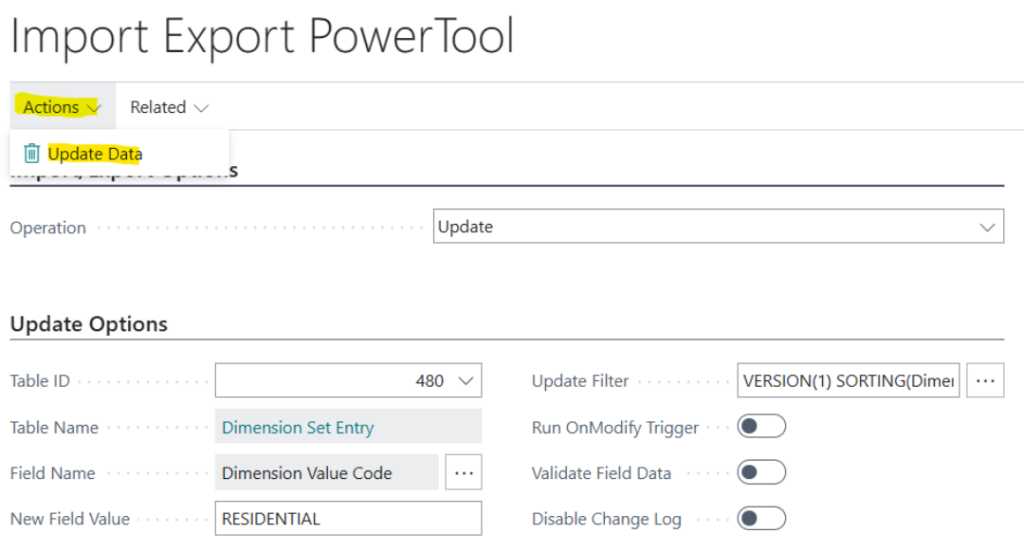
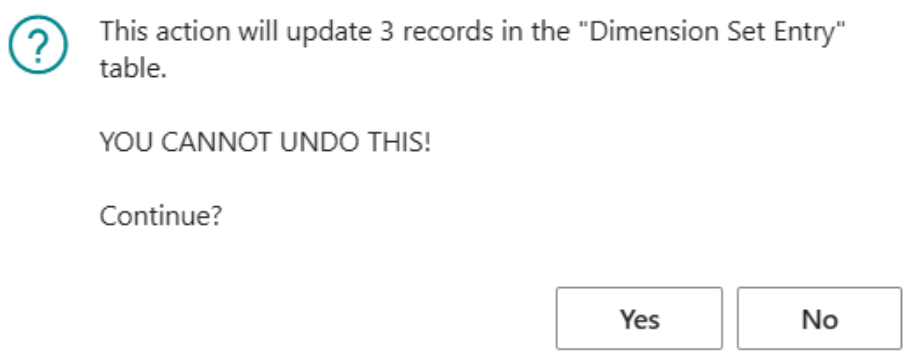
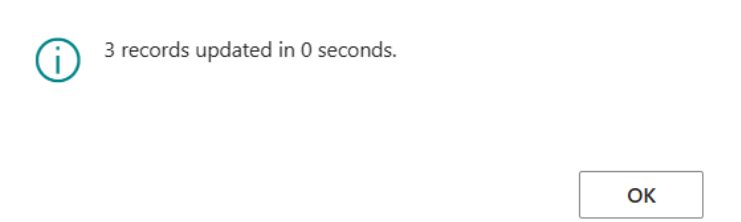
A message box will appear with information on the number of records to be updated and to warn that the action cannot be undone. Click on Yes to Continue, and then click on OK.
To validate the update, review the General Ledger Entries using the filter with the old Dimension Code Value, which should show no results, and the new Dimension Code Value created by the update.
Also, generate reports for the subsidiary ledgers like Purchasing, Sales, etc., using the old and new Dimension Code Value to confirm the updates.