
Written By Jessy Schroeder
Controlling CRM database storage can be difficult. The larger the database, the harder it is to achieve faster performance, better data handling, or to keep the storage costs low. In Dynamics 365 and with the CRM systems, Microsoft allots data storage to organizations based off an initial allotment, with additional space provided based on the number of user licenses and any extra storage purchased.
Going over this total allotment can increase your Microsoft CRM costs and slow down performance. Fortunately, one easy way to keep your organization’s database size below your total allotment, is to delete out old Audit Log records that are no longer needed.
Overview
The Audit Log tracks changes to records (who changed what and when), and over time this table can grow very large and eat up a good portion of your database storage. As this table grows, this can slow down queries, increase database size, and make backups take longer. Periodically deleting old audit logs helps to keep the system performant and the database manageable. With this step-by-step guide, we will show you how to delete old audit logs to gain back more storage space.
Step-by-Step Guide
To complete the steps below, you will need to have a user license that allows you access to Power Platform Admin Center.
Manually Deleting Audit Logs
Deleting out old audit logs can only be done individually at the environment level. So, if you have multiple environments where you wish to delete out logs, you will need to repeat the following steps for each environment.
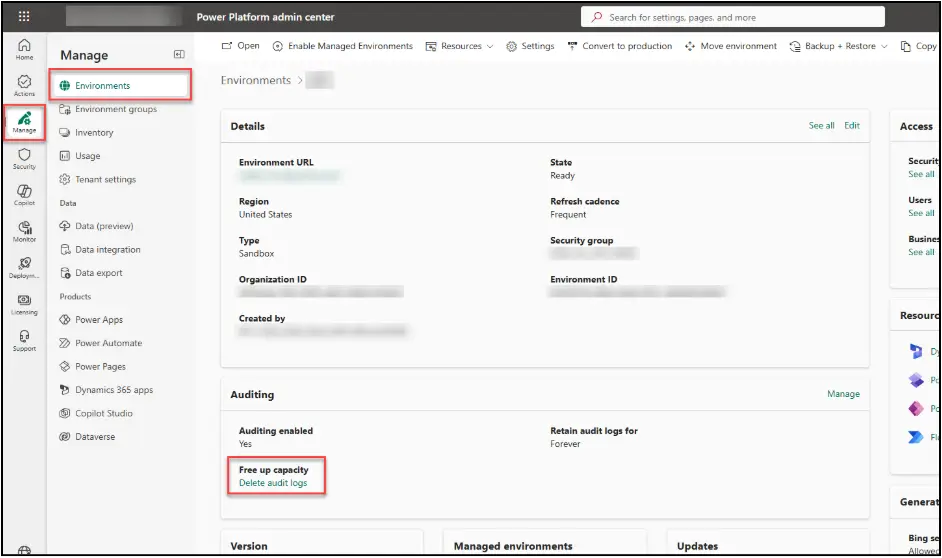
Since this is done per environment, navigate within the Power Platform Admin Center to the Environments section and select your specific environment. There will be a section related to auditing. Select the option to Delete audit logs.
A side panel will pop open with options for deleting out audit logs. The options include deleting by table, by type of person or system, or by date.
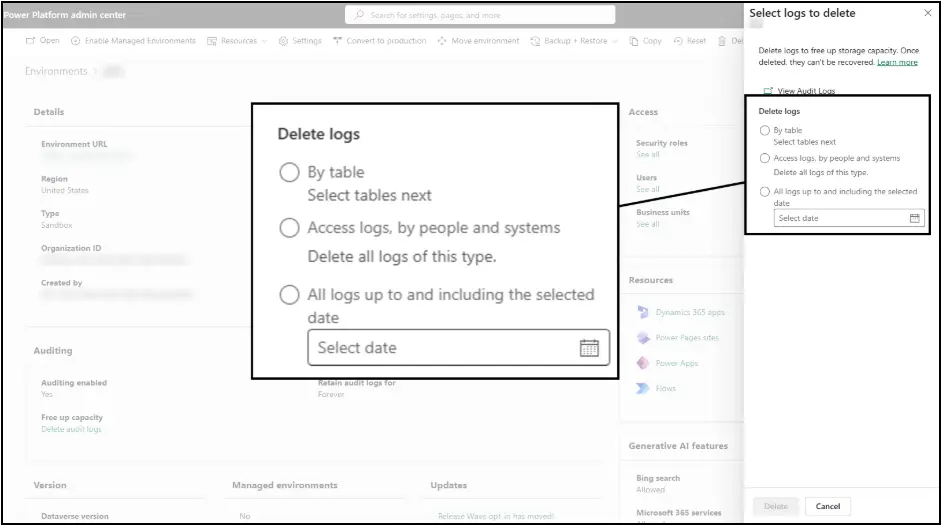
The most common option is typically to delete out by date, which allows you to delete all previous logs up until a specific date (e.g., anything older than and including 12/31/2024).
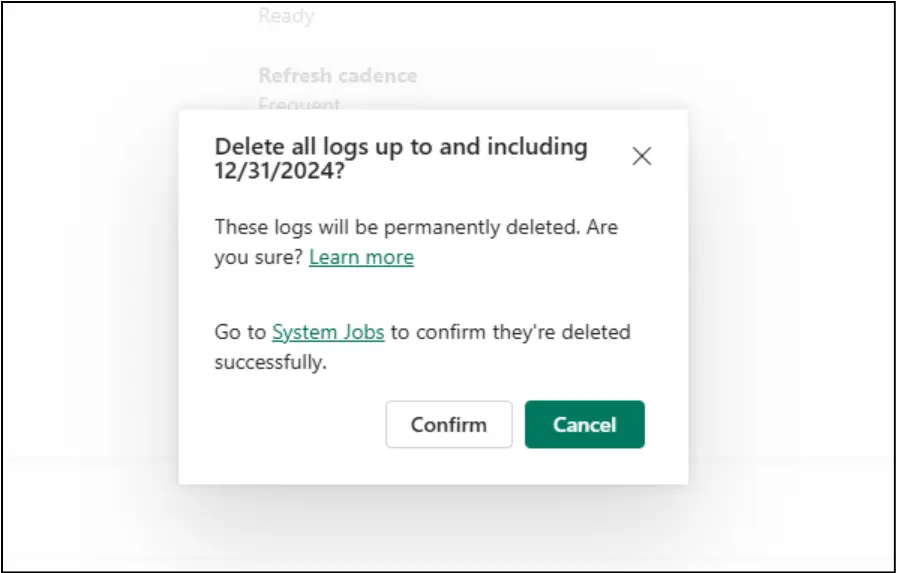
When deleting out audit logs, it will have you confirm before it begins the process, with a reminder that deleted logs will be permanently deleted. There is also an option to click a hyperlink to go to that environment’s System Jobs. This is where you will be able to monitor the bulk deletion, as it may take minutes to hours to complete based on the size of deletion.
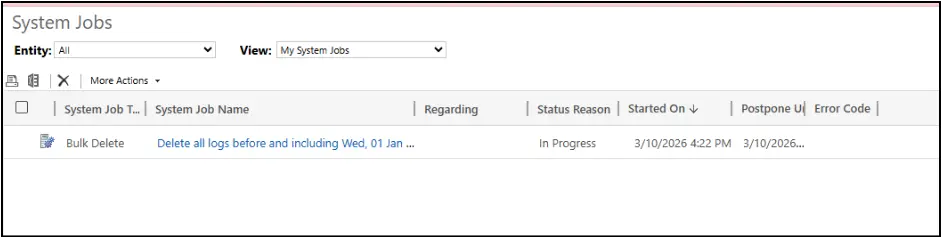
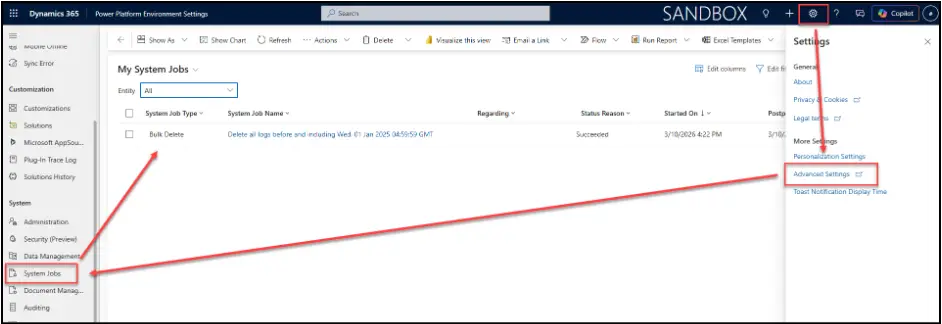
The System Jobs can also be accessed from the CRM system by going to Settings > Advanced Settings > System Jobs > and then filtering the list by either the My System Jobs view (if the job was triggered by your own user) or by filtering the System Job Type column to “Bulk Delete”.
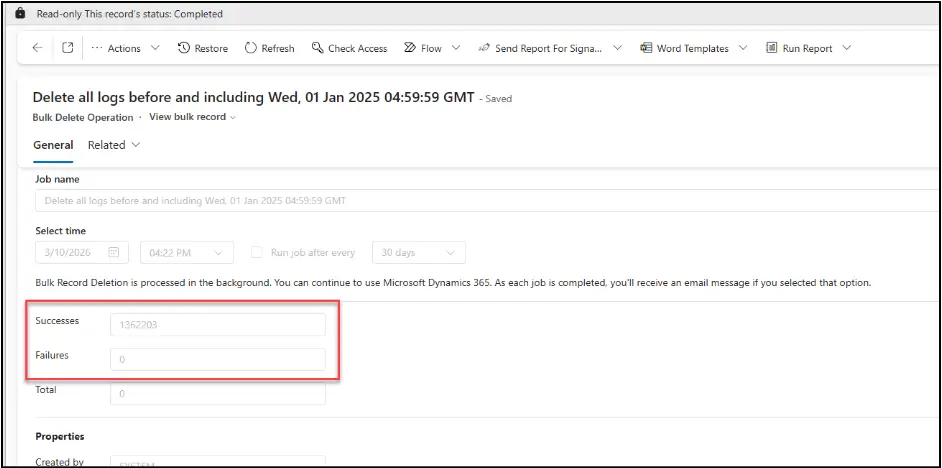
Clicking into the System Job will provide additional information. When the job has completed, there will be official counts of the number of records successfully deleted and/or failed.
Note: The name of the system job may show the day after what you had selected, but notice that it includes a timestamp in GMT. This timestamp will equate to just prior to midnight of the day selected based on the user that triggered the bulk deletion (e.g., Jan 1, 2025 @ 04:59:59 GMT = Dec 31, 2024 23:59:59 ET).
Deletion Examples
By Date
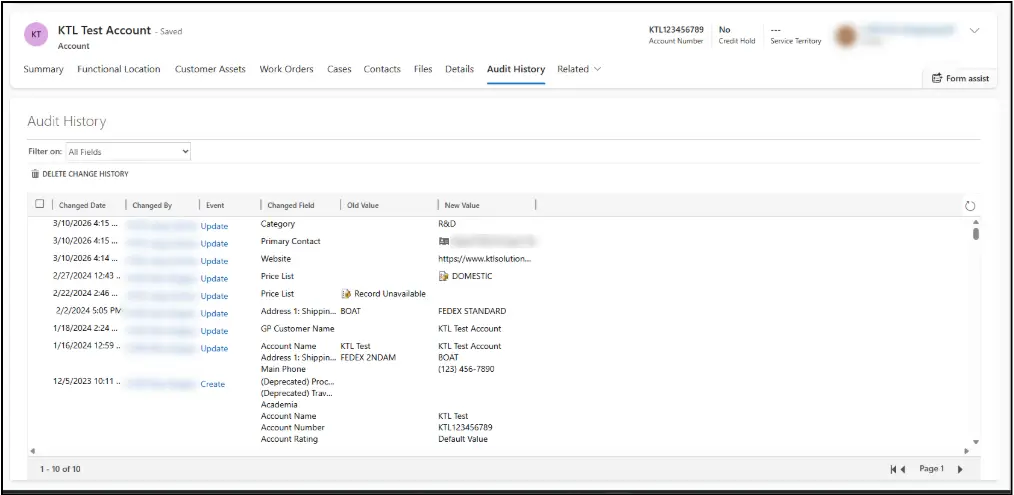
This is an Account record’s audit history before deleting out old audit log records. Note that the audits have tracked updates made to this account since 12/5/2023.
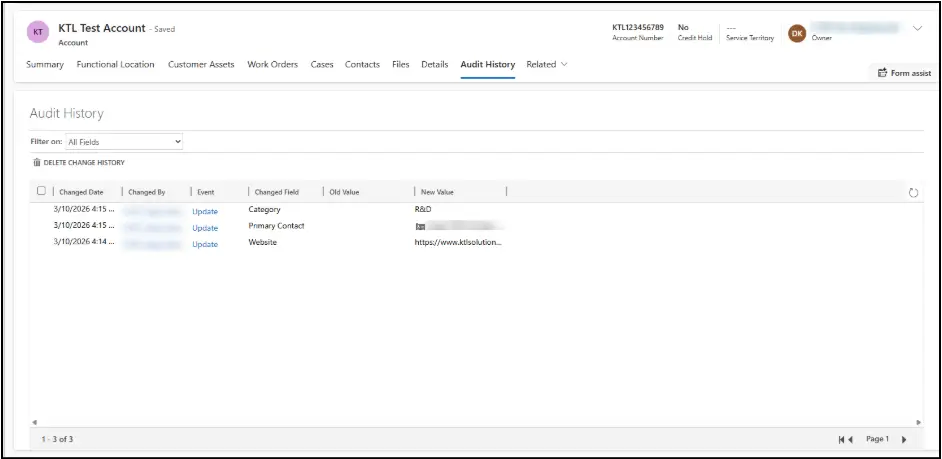
This is the same Account record’s audit history after deleting audit logs that were created on or before 12/31/2024:
By Table
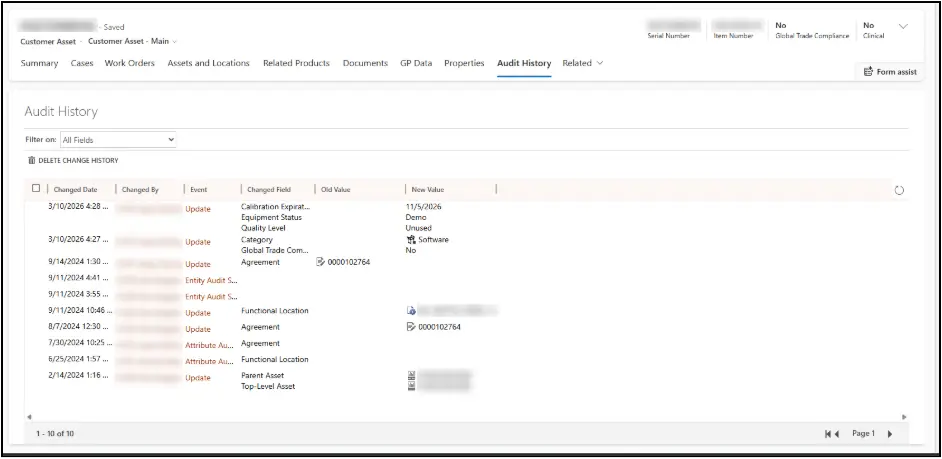
This is a Customer Asset record’s audit history before deleting out old audit log records. This record has audits dating back at least two years.
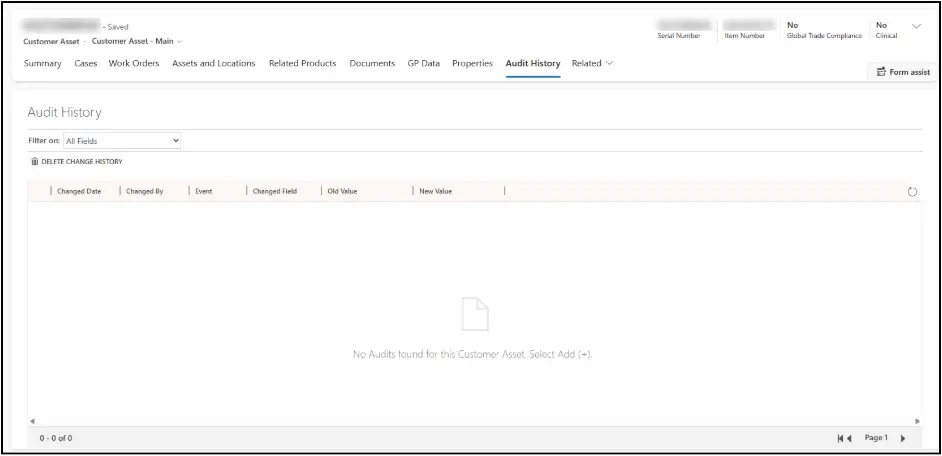
This is the same Customer Asset record after deleting out all audit logs related to the Customer Asset table. Note that all of the audit history is now gone. If any future updates are made to this record, it will create new lines for those audit logs, but anything tracked from before the bulk delete was run is now permanently gone.
Best Practices
- As a precaution, back up the database first before deleting logs, if there is any chance you may need to roll the deletion back. Once deleted, audit records cannot be recovered unless you restore a database backup.
- Delete logs in batches if the audit table is very large.
- Establish a retention policy in your organization (e.g., delete anything older than 2 years).
- Consider exporting audit data first if you need long-term compliance storage.
- Never manually delete rows from the AuditBase table in SQL for online environments. Always use the Audit Log Management tool so the platform maintains integrity.