
By Andrew Fraser
What Is a Subreport in SSRS?
A subreport in SSRS (SQL Server Reporting Services) is a report that runs inside another report. The subreport is created and configured separately from the parent report. However, it displays within the body of the parent report when the report runs.
The parent report passes parameters to the subreport so both reports stay synchronized. Because of this connection, the subreport can display data related to the specific record or group shown in the parent report.
Subreports are useful when a report needs to display additional details without making the main report overly complex. For example, a sales report might display customer information in the parent report while a subreport shows the related order history.
Why Use a Subreport in SSRS?
Subreports help organize complex reporting structures. Instead of building one large report with many datasets and layouts, developers can separate logic into smaller reports.
Using a subreport in SSRS provides several advantages:
- Reuse existing reports inside other reports
- Simplify complex report layouts
- Keep report development modular and easier to maintain
- Display related datasets within a single report view
Because the reports remain independent, developers can update the subreport without changing the parent report’s layout.
Linking an Existing Report as a Subreport in SSRS
You can link an existing report as a subreport directly from the parent report. The process is straightforward when using Microsoft Report Builder.
Follow these steps to add a subreport in SSRS.
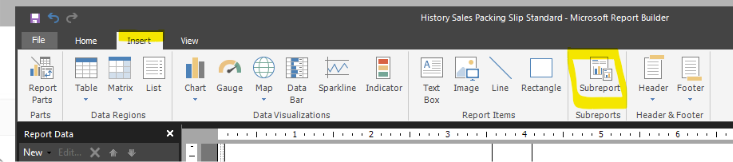
Step 1: Open the Parent Report
First, open the parent report in Microsoft Report Builder. This report will host the subreport.
Step 2: Insert the Subreport Object
Next, select the Insert tab in the toolbar.
From the toolbar options, choose Subreport. This action changes the mouse pointer so you can place the subreport container inside the report layout.
Step 3: Place the Subreport on the Report Canvas
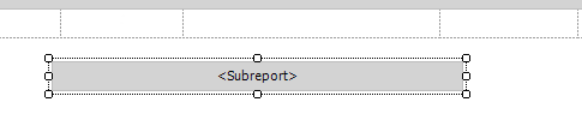
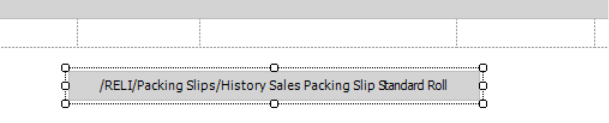
Click and drag the mouse pointer on the report body to create the area where the subreport will appear. When you release the mouse button, Report Builder adds a subreport container.
After placing the container, you can adjust its size by selecting the object and resizing it within the report layout.
Step 4: Open Subreport Properties
Right-click the subreport container and select Subreport Properties.
This menu allows you to configure how the subreport behaves inside the parent report.
Configuring Subreport Settings
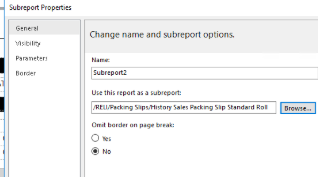
After opening the Subreport Properties window, you will see several tabs that control how the subreport in SSRS operates.
General Tab
In the General tab:
- Enter a name for the subreport object
- Click Browse to locate the report you want to use as the subreport
- Choose whether to omit borders around the subreport
This step connects the parent report to the existing report file.
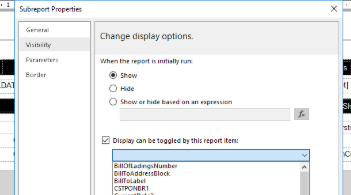
Visibility Tab
The Visibility tab controls whether the subreport appears when the report first runs.
You can choose from three options:
- Show the subreport
- Hide the subreport
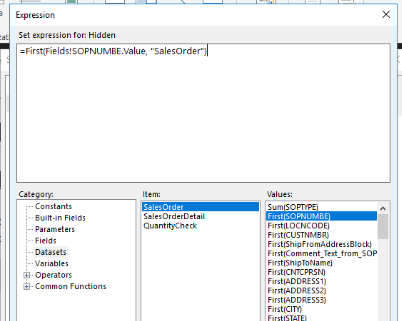
- Control visibility based on an expression
If you select the expression option, click the fx button to open the formula editor. From there, you can create logic that determines when the subreport appears.
You can also enable toggling so users can expand or collapse the subreport within the report. To do this, select the toggle option and choose the report item that will control the visibility.
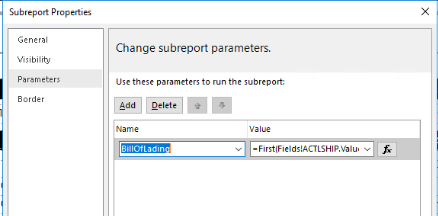
- Parameters Tab
- The Parameters tab is where the parent report connects to the subreport data.
- To add parameters:
- Click Add
- Select the parameter name from the subreport
- Choose the value from the parent report dataset
- These parameters pass values from the parent report to the subreport. As a result, the subreport displays data that matches the selected record or group.
- You can also reorder or delete parameters within this tab.
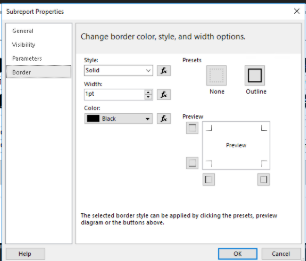
Border Tab
The Border tab allows you to adjust the visual appearance of the subreport container. For example, you can change border styles, colors, and widths to highlight the subreport area in the report layout.
Although borders are optional, they can help visually separate the subreport from other report elements.
Testing the Subreport in SSRS
After configuring all properties, the subreport in SSRS should now be connected to the parent report.
Run the report to test the configuration. If the parameters were configured correctly, the subreport will display related data based on the parent report’s dataset.
If the subreport does not display correctly, check the parameter mappings first. Most subreport issues occur when the parent report does not pass the expected parameter values.
- Once these settings are completed, the sub report should be linked and ready for testing
Final Thoughts
Using a subreport in SSRS is an effective way to organize complex reports and display related information in a structured format. By separating reports into smaller components, developers can simplify report design while improving maintainability.
When configured properly, subreports allow multiple datasets and layouts to work together within a single report. As a result, organizations can build more flexible and scalable reporting solutions using SQL Server Reporting Services.
If your team uses SSRS for enterprise reporting, understanding how subreports work can significantly improve report organization and development efficiency.