
Written By Jessy Schroeder – Dynamics 365 Functional Consultant
Searching for specific records in your Dataverse environment should be easy. A good search bar should be able to filter on the fields and tables you want to search on, without inundating you with too many records to look through.
This is where following Dataverse search best practices for configuring your settings can make a significant difference. This option allows staff to search database-wide for the records they wish to see (instead of needing to navigate to a specific table first) and see results appear as they type. Configuring the Dataverse Search also allows your organization to prioritize the types of records you want to see in the results of a global search, what fields you would want the search to reference, and complete more intelligent searches for better results (including for partial matches).
Using Dataverse Search
Microsoft’s Dataverse Search is available in Dynamics 365 customer engagement apps, including Sales, Customer Service, Field Service, Marketing, and Project Service Automation. When Dataverse Search is turned on, users will see a search bar across the top header of all model-driven apps in that environment.

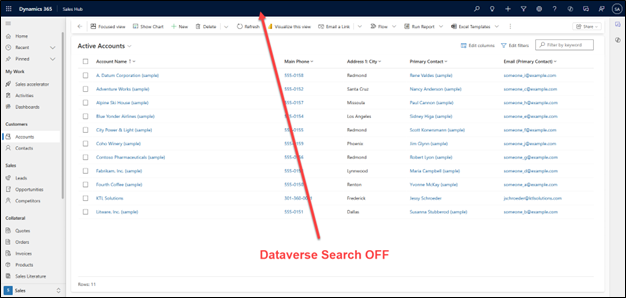
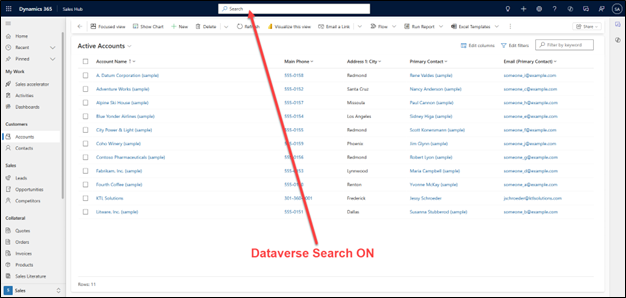
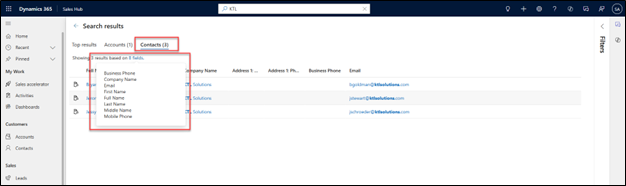
When a user types at least three characters into this search bar, it will bring up a quick view of records that match the Dataverse Search’s configured search criteria.
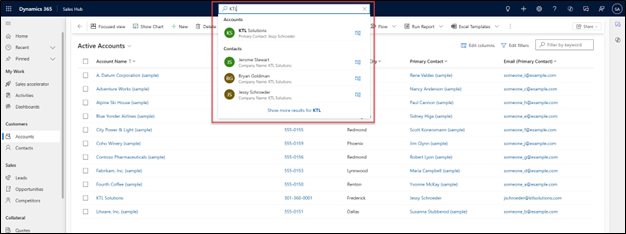
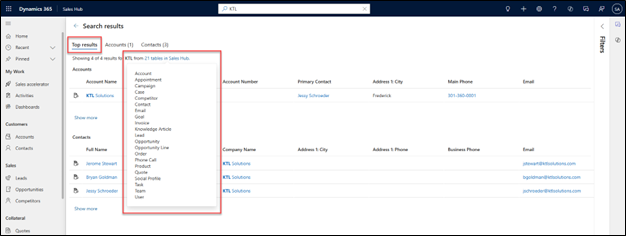
The user can then select to see more results for their search. It will default to showing a few records from each eligible table (if there are many results), but the user can also select to show the list of records from any specific table that has results. The top results tab has an option to show the list of tables that the Dataverse Search is configured to search, and the individual table tabs can show the user the fields that the specific table is configured to search against.
Enabling Dataverse Search
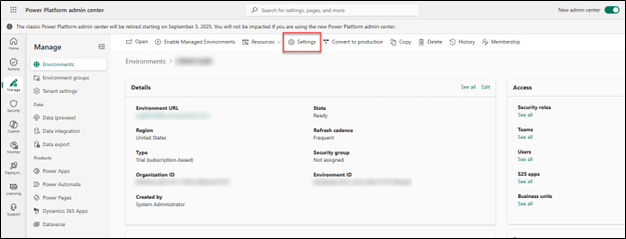
Turning Dataverse Search on for your environment must be done by an admin user who has access to the Power Platform Admin Center. In the Admin Center, choose the environment where you wish to turn on the Dataverse Search and select Settings in the top bar.
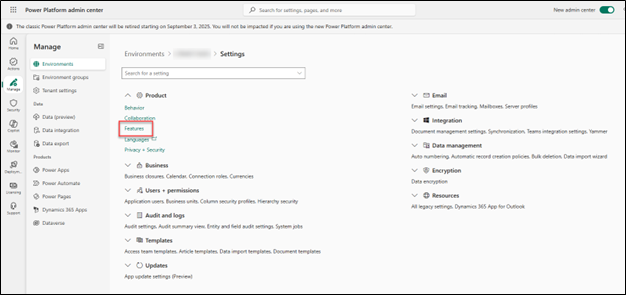
In the Settings of your environment, expand the Product section and select Features.
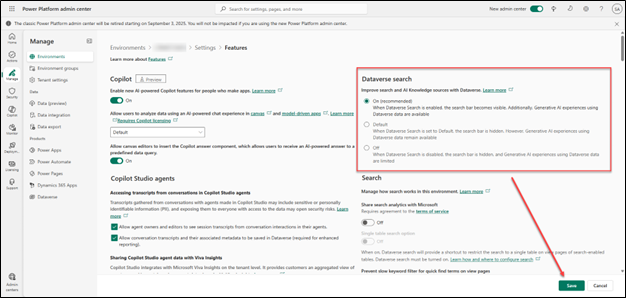
In the Dataverse Search section of the next page, select the On option and save the page.
Selecting Tables Used in Your Dataverse Search
To update what tables are searched when a user types into the global Dataverse Search bar at the top of their page, an admin user will need to open the environment within the Marker Portal (make.powerapps.com).
In your preferred solution, navigate to its Overview page. The column on the right-hand side will display Dataverse Search information for the entire environment and that specific solution. While there is no limit to how many tables can be part of the Dataverse Search, there is a limit of 1,000 fields that can be used across all selected tables. Dataverse Search automatically indexes 50 fields by default (fields like Primary ID and Name on some of the tables), allowing you to configure up to 950 additional searchable fields.
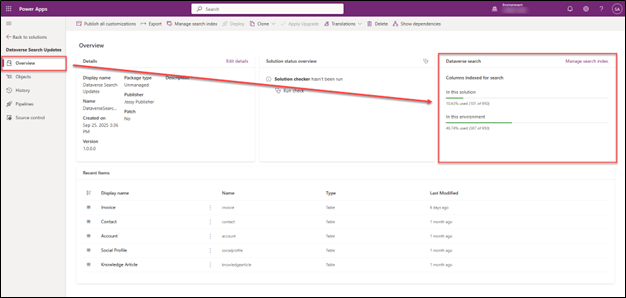
Click on Manage search index in the Dataverse Search section to open a panel and start configuring. This panel will show a list of tables within this same solution that are indexed to be used within the search, along with the number of fields (columns) indexed for that specific table. The bottom of the panel will display a running total of how many more fields you can index.
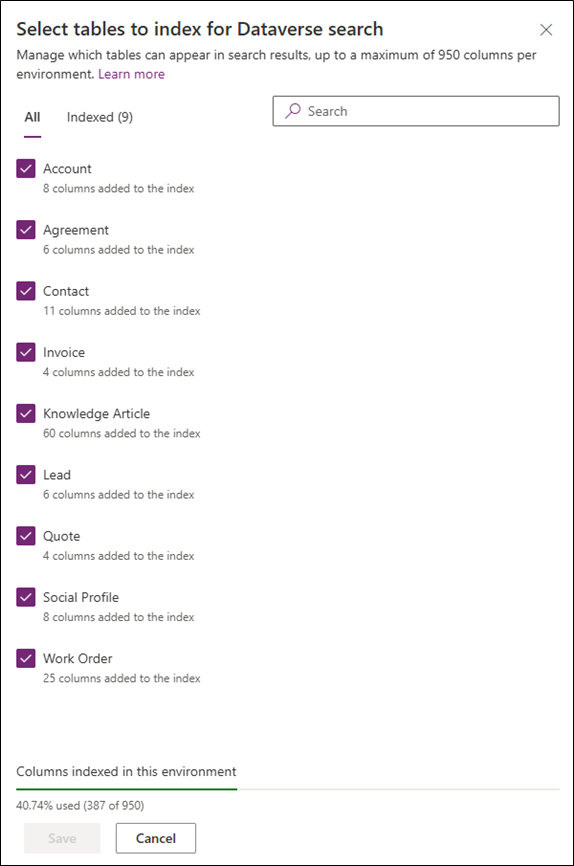
To remove a table entirely, uncheck the box next to the table name. The total percentage used and number of columns indexed at the bottom will automatically update once they are unchecked. Make sure to Save.
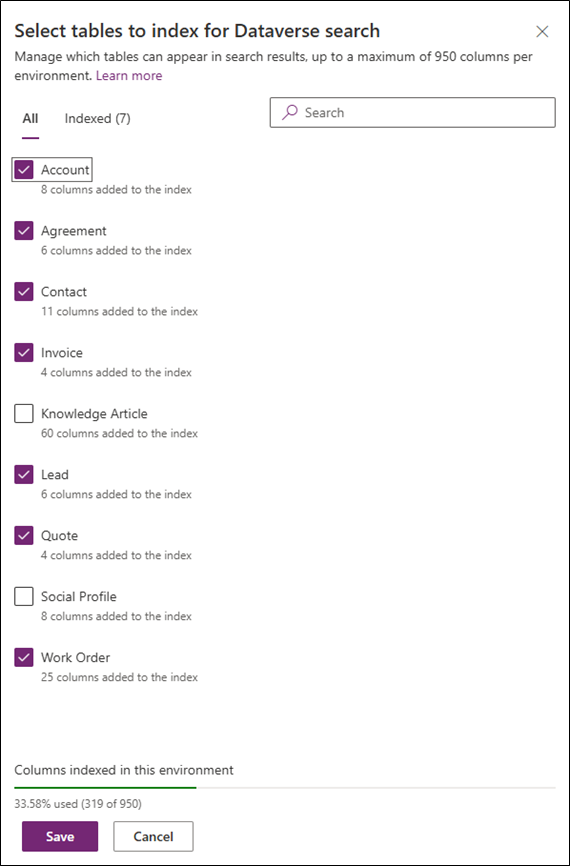
If you wish to add a table to this list, but do not see it, navigate back to the table’s properties and make sure that Appear in search results is turned on.
Selecting Fields to Index within Each Table
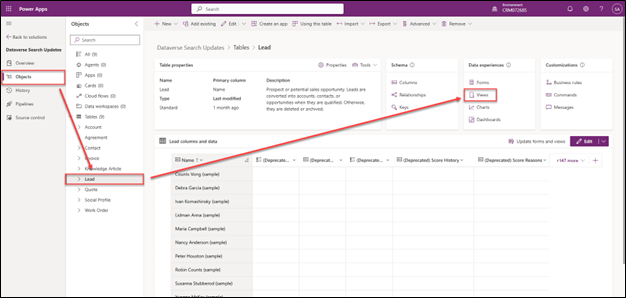
To decide which fields are indexed and searchable within each selected table, navigate back to the Objects tab of your solution and open the desired table. In this example, we will add some more fields for the Lead table.
The fields used in the Dataverse Search come from the table’s Quick Find View setup. Navigate to the table’s Views and open the Quick Find View for the table. If you do not see it in your unmanaged solution, you may not have been added yet, and you will need to add the existing view.
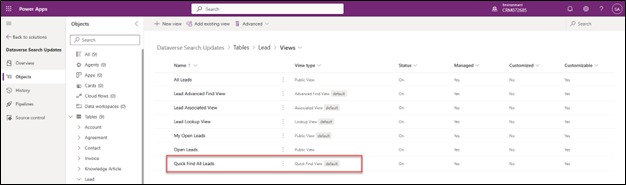
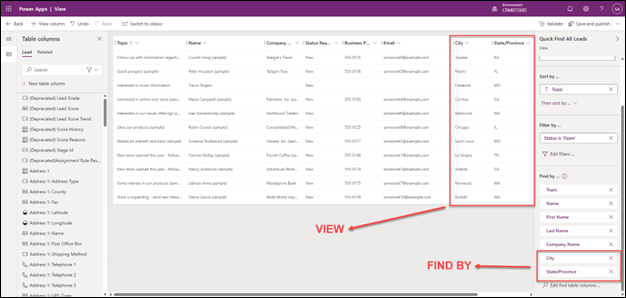
Within the Quick Find View, update the View and Find by columns. These will update which fields will be indexed for the Dataverse Search. In this example, we want to be able to pull up Leads based on the city or state fields when we search, so this has been added to the both areas. When done, Save and publish the view.
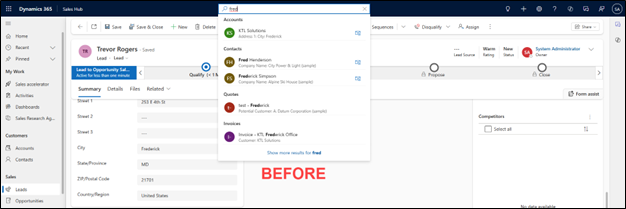
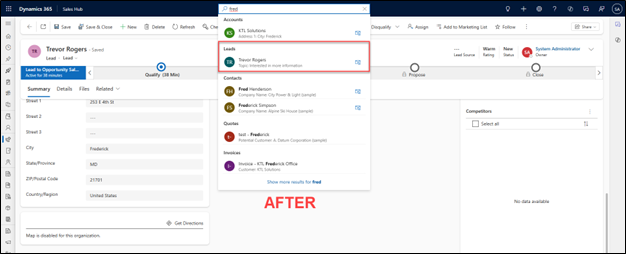
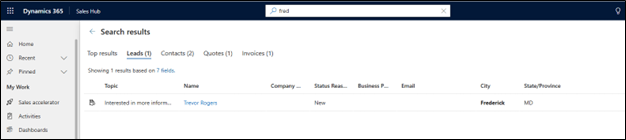
Now that those have been saved, we can now search for “Fred” and see that it pulls up a number of records. The results have a mixture of records where Fred is in the name of the record or part of the address, based on our setup.
Previously, since Leads were not configured to search on City, our Lead record for Trevor Rogers did not appear. But after the configuration change, that record now shows up in our search.
Important Info on Updating Dataverse Search
- Per Microsoft, changes to the indexing may take up to 15 minutes to appear in the search service. A full sync may take up to an hour for an average-sized organization, and a couple of days for a large organization.
- Although you can add fields from related tables to the Quick Find View, they will be ignored during the search for that table.
- Certain types of fields count as more than one field due to their structure and will count as more towards the overall maximum of 950 fields per environment.
- Lookup fields count as 3 fields
- Option Set fields count as 2 fields
Dataverse Search Configuration Tips
- Just because it is possible to index up to 950 extra fields, try to stay lower. The more tables and fields that are searchable, the slower the performance and the harder it will be to sift through the results.
- Make sure that any tables you add into your Dataverse Search are also added to your model-driven app. While a table may be marked as “searchable”, it must also be part of the individual app to be used within any search features.
Need help configuring Dataverse Search or optimizing your Dynamics 365 environment? KTL Solutions’ Microsoft Power Platform services and Dynamics 365 CRM and ERP solutions are designed to get more out of your Microsoft stack. Contact us to get started.