
Written By Robert Katz
The General Journal Entry Screen in Dynamics 365 Business Central is a core tool for financial management. It allows accountants, finance managers, and bookkeepers to enter, review, and process financial transactions efficiently. By understanding its design and best practices, organizations can improve accuracy, streamline workflows, and reduce errors.
Design and Objectives of the General Journal Entry Screen
The screen emphasizes usability, transparency, and accuracy. Dynamics 365 Business Central aims to:
- Provide intuitive navigation for new users
- Validate entries in real-time to reduce errors
- Allow customization to meet unique business needs
- Support bulk operations for large datasets
- Integrate seamlessly with the broader D365 BC ecosystem
Key User Interface Components
The General Journal Entry Screen includes:
Filter Pane: Filters journal lines for better focus
Ribbon/Menu Bar: Quick actions like posting, preview posting, importing, exporting, and batch management
Journal Batch Selector: Switch between different journal batches (e.g., general, payments)
Entry Grid: Tabular workspace for financial transactions
FactBoxes: Contextual panels showing account balances, dimensions, or attachments
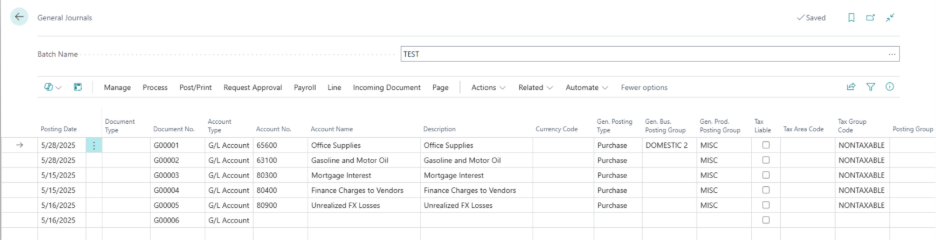
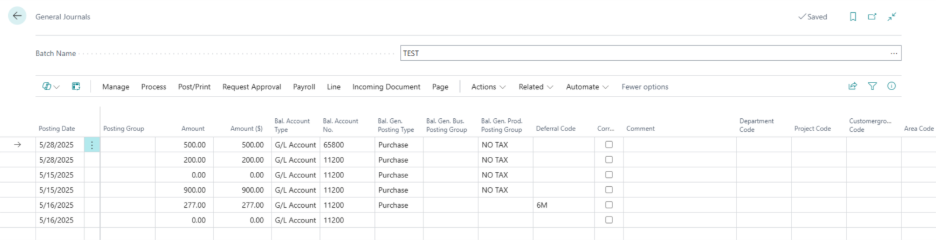
Sample Screen Image:
Entry Grid Details
The entry grid is central to journal management. Key columns include:
- Posting Date
- Document Type & Number
- Account Type & Account Number
- Description & Amount
- Balancing Account
- Dimensions, VAT/Tax Codes
- Applies-to Document Type/No.
- External Document Number
Real-time validation ensures accuracy. For example, invalid account numbers prompt immediate warnings, reducing posting errors.
Customization and Personalization
Personalization Options:
- Column Chooser: Add, remove, or rearrange columns
- Saved Views: Store frequently used layouts and filters
- User Profiles: Role-based default layouts
System Customization:
- Add custom fields for business-specific data
- Automate repetitive entries with templates or workflows
- Include additional FactBoxes or panels
- Apply custom logic via AL code extensions
Batch Management and Posting
Each entry belongs to a batch. Users can:
- Create and name batches
- Assign default values and templates
- Implement approval workflows
- Track batch status: Open, Posted, Pending
Posting options include:
- Post
- Preview Posting
- Post and Print
Integration with Other Modules
The screen connects with:
- Accounts Payable/Receivable
- Fixed Assets
- Cash Management
- Project Management
- Inventory
This ensures smooth financial operations across modules.
Advanced Features
- Recurring Journals
- Allocations across accounts/dimensions
- Reversals for errors
- Dimension Combinations
- Bulk Import/Export
- Attachments for supporting documents
Security and Accessibility
Role-based access ensures only authorized users can edit or post entries. Audit trails track all changes. The screen is cloud-accessible and mobile-friendly, supporting remote workflows.
Best Practices
- Use templates and recurring journals
- Preview postings before committing
- Apply filters and saved views
- Encourage personalization for efficiency
- Implement approval workflows
- Keep supporting documents attached
- Regularly review audit trails
Conclusion
The General Journal Entry Screen in Dynamics 365 Business Central combines usability, flexibility, and accuracy. With customization, automation, and integration, organizations can streamline financial processes and reduce errors. Following best practices ensures your teams work efficiently while maintaining compliance.
Microsoft Dynamics 365 Business Central official documentation