
Written By Robert Katz
Knowing how to locate company and system data in Dynamics Great Plains helps administrators manage and troubleshoot their Microsoft Dynamics GP environments more efficiently. This step-by-step guide explains where your organization’s operational and configuration data is stored within the system. You’ll learn the navigation path, how to identify product series, understand table naming conventions, and view table-level details for specific data entries.
💡 For an overview of Microsoft Dynamics GP and its core features, visit the official Microsoft Learn page.
Step 1: Navigating to Resource Descriptions
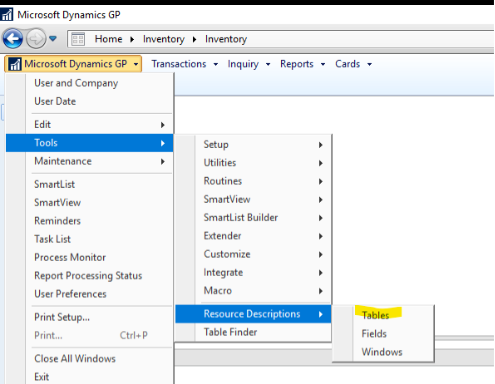
To begin locating where your company and system data resides in Dynamics Great Plains, follow this path:
Microsoft Dynamics GP → Tools → Resource Descriptions → Tables
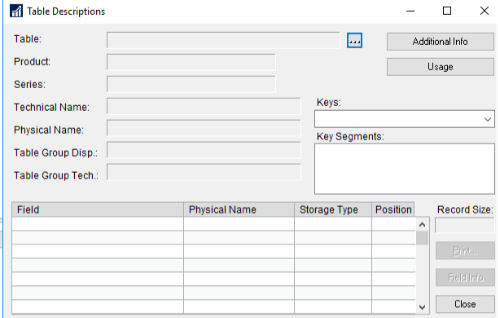
When you open this section, click the box with the three dots to open the detailed table view screen.
Step 2: Understanding the Selection Options
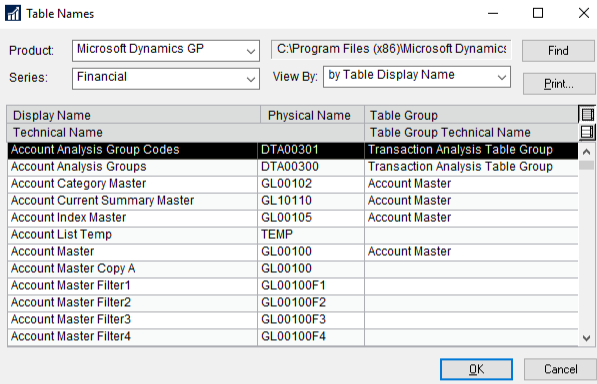
When the Resource Descriptions screen opens, you’ll notice three key options at the top:
Series: Choose the relevant data series. For example, the Purchasing Series contains Accounts Payable and Purchase Order Processing data.
View By: Determines how results are sorted — such as by Display Name or Physical Name.
If you know the display window where data appears, choose Display Name. If you know the technical name (e.g., Accounts Payable), select Physical Name.

Step 3: Understanding Table Nomenclature in Dynamics GP
Physical Name: Usually 7 or 8 characters.
The first 2–3 characters are alphabetic, representing the module or series.
Step 4: Viewing Table-Level Details
After sorting by Physical Name, you’ll see a list of tables for the selected series.
For example:
- Selecting PM00200 displays the Vendor Master table.
When you click or drill down on a record, you can view the table-level details, including Storage Type and Position fields.
These details indicate where data is stored:
- Company Data → Stored in the company database.
- System Data → Maintained in the Dynamics database.
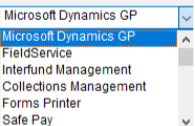
- Series: This is where we select the series we are looking at. Example, The Purchasing Series holds Accounts Payable and Purchase Order Processing data.
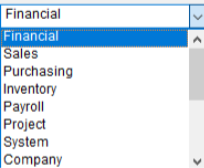
- View By: This will sort the results by the Option you select:
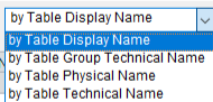
View By Continued:
The selection here depends on information you know, for example, if you know the Window where the data is displayed, you might choose Display Name. If you only know its Accounts Payable data, you might choose Physical Name.
- When you select Physical Name, the result is sorted by the middle column.
Nomenclature:
The Physical Name consists of 7 or 8 characters.
The first 2 or 3 will be Alpha characters and represent the series.
Example:
| Abbreviation | Module or Series |
| PM | Payables Management |
| SOP | Sales Order Processing |
The Final 5 will be Numeric Characters with the following Meaning:
| Records Range | Description |
| 00000 to 00099 | Master data like Customer, Vendor, and Accounts |
| 10000 to 10999 | Worktables for unposted transactions within a batch |
| 20000 to 20999 | Posted transactions not settled reside in open tables |
| 30000 to 30999 | Settled historical transactions reside in history tables |
| 40000 to 99999 | Additional setup related data |
Managing Data Efficiently in Dynamics Great Plains
By following these steps, you can accurately locate company and system data in Dynamics Great Plains, understand the meaning of table structures, and drill into specific details for analysis or troubleshooting. Whether you’re a system administrator, developer, or power user, mastering this process helps maintain transparency and control over your organization’s data environment.
Explore additional documentation on Microsoft Learn for Dynamics GP.
Contact KTL today for more information.