
Written By Cheryl Shephard
Dimensions play a crucial role in Microsoft Dynamics 365 Business Central. They help businesses analyze data accurately and create reliable reports. Yet, mistakes happen — and when they do, knowing how to correct them properly is essential.
In this guide, you’ll learn how to perform a Business Central Dimension Correction using the Import Export Power Tool. You’ll also discover key tips to ensure your data stays consistent across your financial system.
Why Dimension Correction Is Important
When incorrect dimensions are applied to General Ledger (G/L) entries, your reports may no longer reflect accurate data. Thankfully, Business Central provides tools to correct these issues and restore consistency.
However, it’s important to remember that dimension corrections apply only to G/L entries. They don’t automatically adjust related sub-ledgers like Sales, Purchasing, or Inventory. As a result, you might notice temporary differences between the G/L and other ledgers.
To keep your system balanced, always double-check sub-ledger data after making any corrections.
System-Wide Correction Limits
Business Central supports dimension corrections, but large-scale updates can be risky. It’s best to limit corrections to 10,000 entries or fewer per batch. Doing so helps avoid timeouts and performance issues.
If you need to correct a large data set, use the Import Export Power Tool. This tool allows you to update the Dimension Set Entry table directly, giving you control and precision.
Understanding Dimension Sets
A dimension set represents a specific combination of dimension values. Instead of saving each value separately, Business Central uses a Dimension Set ID to link them together.
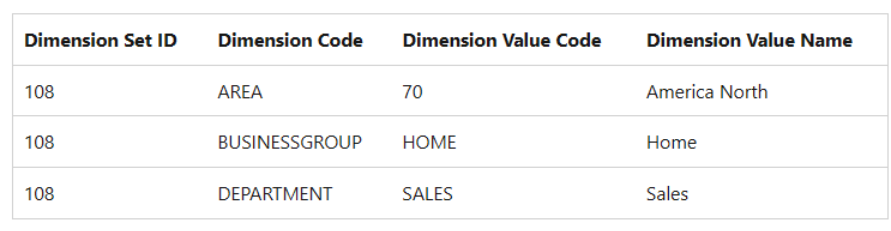
For example, a dimension set with ID 108 might include three unique dimension values. When you post journal entries or documents, the system uses the ID to refer to the entire set. This method improves speed and consistency across the system.
1. Open the Import Export Power Tool Setup
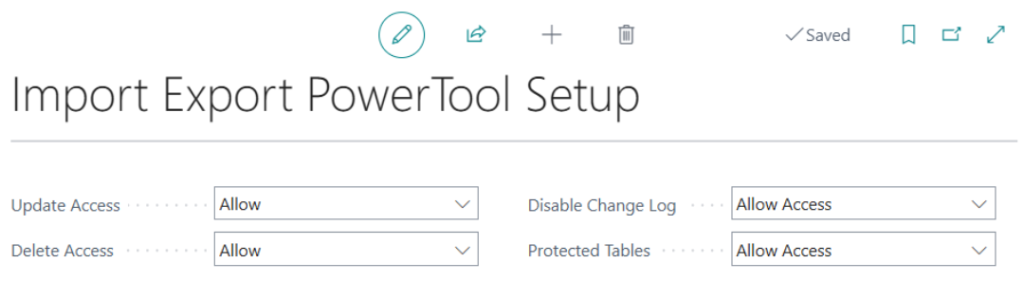
Use the Search bar to find Import Export Power Tool Setup. Review your configuration before proceeding to avoid unwanted data changes.
2. Select the Operation Type
Choose Update from the available operation types.
Using the Import Export Power Tool for Dimension Correction
3. Define Update Options
From the dropdown lists, select the correct Table ID and Field Name.
Then, enter the New Field Value — this will be your updated dimension value.
4. Apply Update Filters
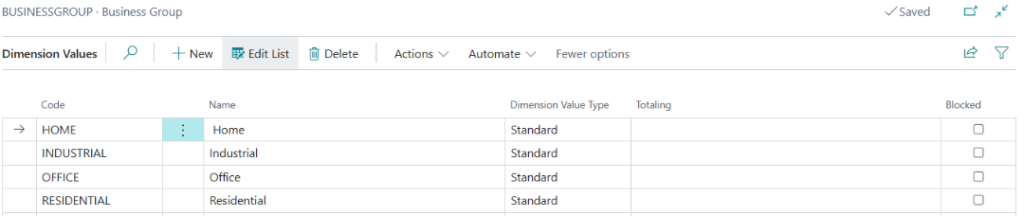
Use the Update Filter to target the specific Dimension Code and Dimension Value Code you want to replace. Filters help ensure that only the intended records are changed.
5. Confirm and Run the Update
Before applying changes, verify all selections. Run the process first in a sandbox environment or test company to prevent data errors.
Once confirmed, go to Actions → Update Data to apply the changes. A confirmation message will appear showing the number of affected records. Click Yes to continue and OK to finish.
6. Validate the Results
After the update, check your General Ledger Entries using the old dimension value. The old entries should now be gone, and the new values should appear.
Next, review reports from Purchasing, Sales, and other sub-ledgers to ensure everything matches your expectations.
Finally, communicate the updates to your accounting and finance teams so everyone stays informed.
Best Practices for Safe Dimension Correction
To minimize risk during a Business Central Dimension Correction, keep these tips in mind:
- Always back up your database before making bulk updates.
- Test first in a sandbox or demo environment.
- Document your changes for audit and tracking purposes.
- Schedule updates during off-hours to reduce system impact.
- Review reports after updates to confirm accuracy.
Transitioning through these steps carefully ensures smooth corrections and consistent results.
Helpful Resources
🌐Microsoft Learn – Business Central Documentation