
Written By Cheryl Shephard
Processing customer payments in Business Central usually involves creating a Cash Receipt Journal and manually applying payments to invoices. However, the Register Customer Payments in Business Central feature provides a more streamlined alternative. This process consolidates open invoices into a single view, reduces manual entries, and automatically generates a posted cash receipt journal.
Benefits of Register Customer Payments
Using Register Customer Payments instead of manually entering data in a cash receipts journal offers several advantages:
- Consolidated view of all open customer invoices
- Fewer manual data entries
- Automatic creation and posting of cash receipt journals
- Supports multiple customers in a single posting
For more details on standard payment processes, check Microsoft’s official documentation on Cash Receipts Journal.
Payment Registration Setup
Before using this feature, configure the following:
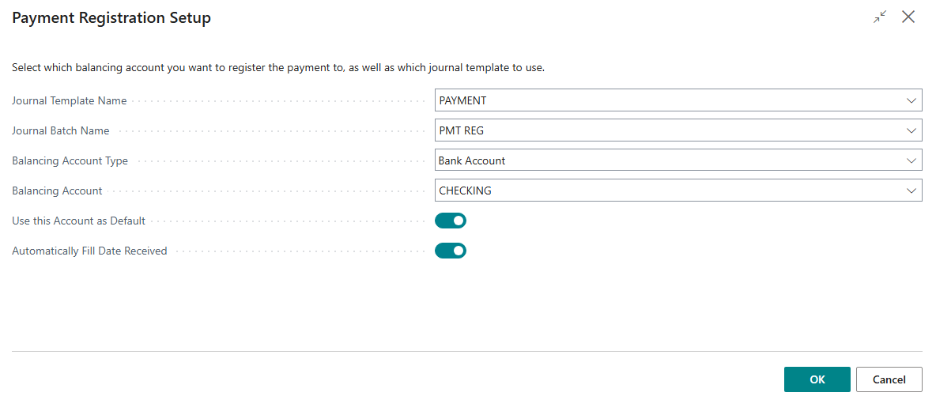
Set the balancing account in the Setup configuration.
Specify the default journal batch.
How to Register Customer Payments
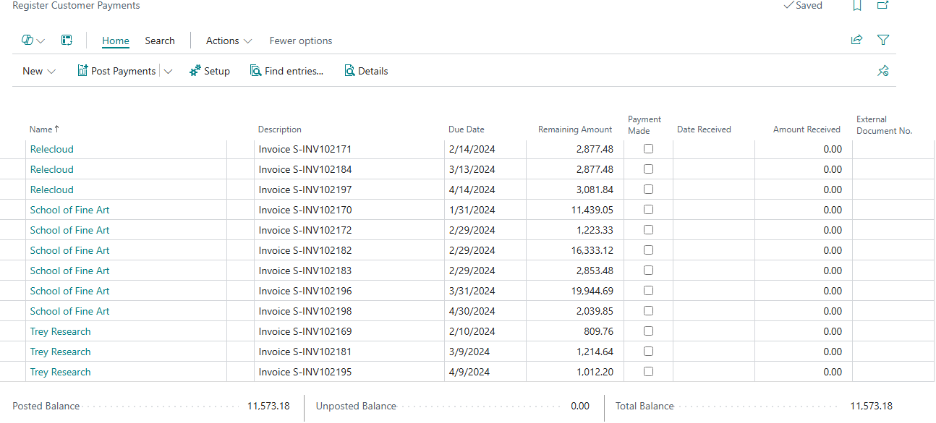
- Open the Register Customer Payments page.
- You can also access this from the Customer Card: select the customer, choose Actions, then Register Customer Payments.
- The system will display a list of all outstanding invoices.
- For each invoice, check the Payment Made box, verify the Date Received and Amount Received, and enter the External Document No. for the payment.
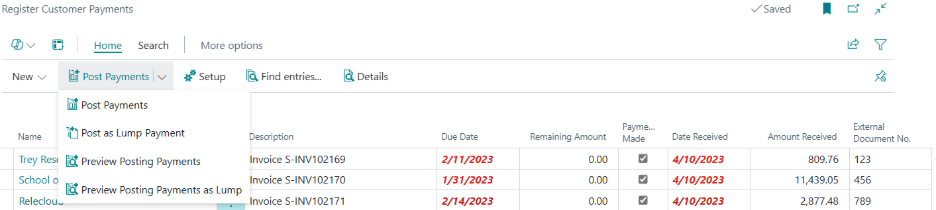
- Click Preview Posting Payments to review entries before posting.
- Click Post Payments to complete the process.
This generates one cash receipt journal line per invoice. The system supports concurrent posting for multiple customers.
Posting Lump Sum Payments
To post a lump sum payment:
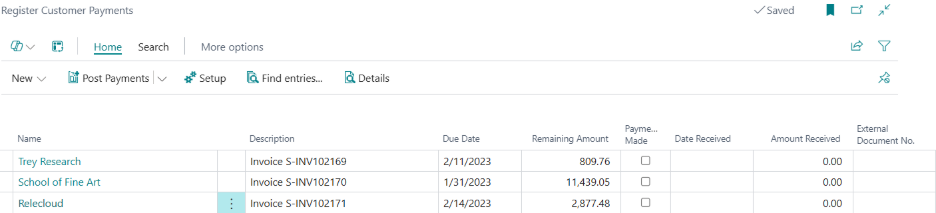
- Select only one customer.
- Check all invoices for which payment is received.
- Post as a lump sum payment.
The Customer Ledger Entries will display a single payment reflecting the total of all selected invoices.
Limitations
- Payments must be posted to the same bank account. This may restrict users who operate multiple accounts.
Checking Your Work
After posting payments, verify the entries in each ledger:
- Customer Ledger Entries: Updates customer records and reduces open receivable balances.
- Bank Account Ledger Entries: Records bank account activity (increase in cash).
- GL Ledger Entries: Debits the bank account and credits accounts receivable.
For further guidance on ledger entries, see Business Central Ledger Entries Overview.