
Jessy Schroeder
Searching for specific records in your Microsoft Dataverse environment should be simple and efficient. With the right Dynamics 365 Dataverse Search configuration, your organization can filter on the fields and tables you care about without being overwhelmed by too many results. This guide explains how to configure Dataverse Search for optimal performance and smarter record retrieval.
Why Configure Dataverse Search
Personalizing your Dataverse Search settings allows your staff to search across the database without navigating to specific tables first. This helps users find what they need faster while ensuring the most relevant records appear at the top. Proper configuration lets you:
- Prioritize record types in global searches
- Define which fields are searchable
- Enable partial match and intelligent search results
For reference, Microsoft provides detailed documentation on Dataverse Search setup.
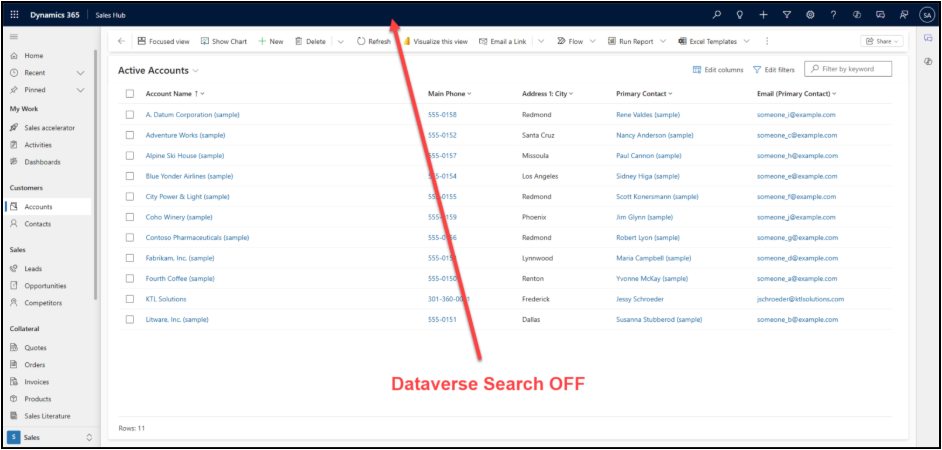
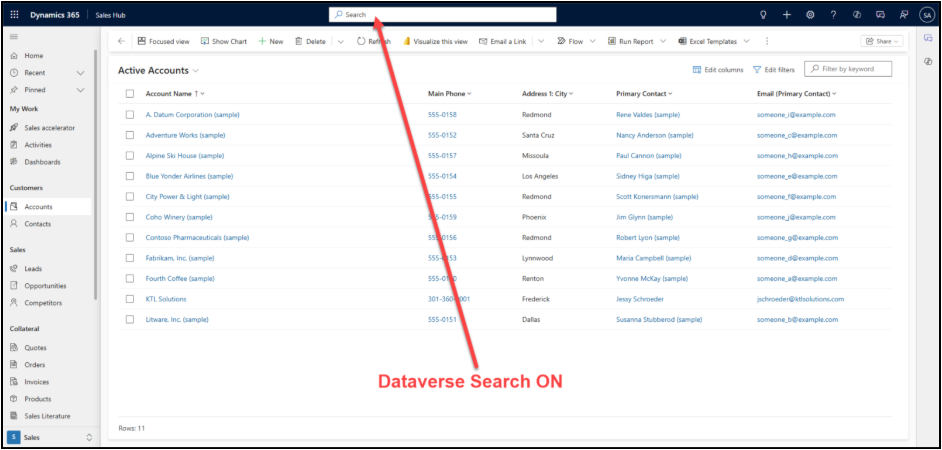
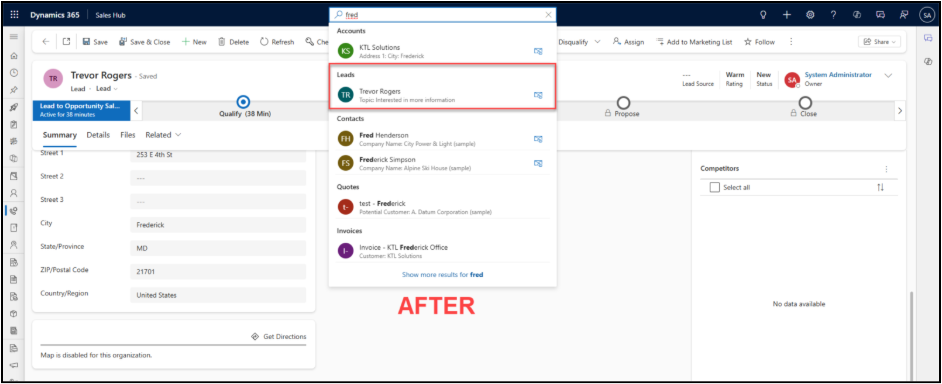
When a user types at least three characters into this search bar, it will bring up a quick view of records that match the Dataverse Search’s configured search criteria.
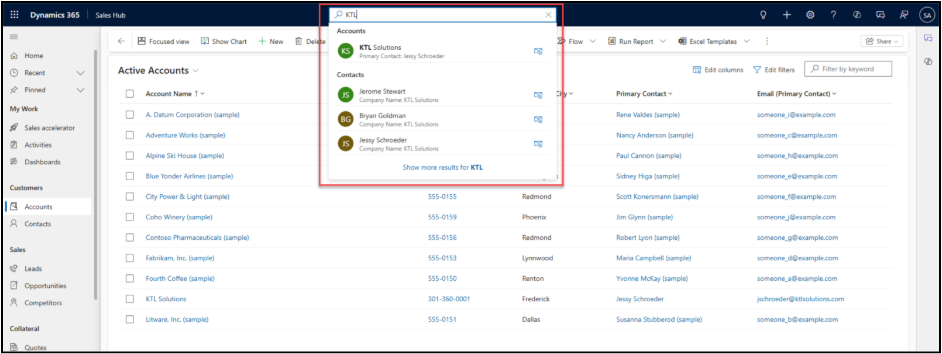
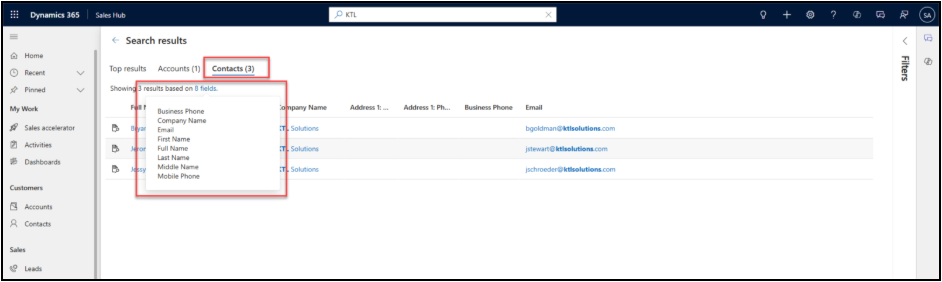
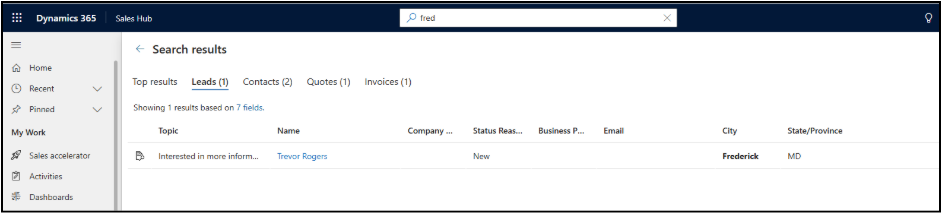
The user can then select to see more results for their search. It will default to showing a few records from each eligible table (if there are many results), but the user can also select to show the list of records from any specific table that had results. The top results tab shows the list of tables the Dataverse Search is configured to search, and the individual table tabs show the fields the specific table is configured to search against.
Using Dataverse Search
Dataverse search in Dynamics 365 is available across customer engagement apps, including Sales, Customer Service, Field Service, Marketing, and Project Service Automation. Once it is turned on, users will see a search bar across the top of all model-driven apps in the environment.
When a user types at least 3 characters into the search bar, Dataverse returns matching records based on its configured search criteria. From there, users can explore top results by table or filter down to specific entities.
Enabling Dataverse Search
To enable Dataverse search in Dynamics 365, an admin must access the Power Platform Admin Center:
- Go to your chosen environment.
- Select Settings → Product → Features.
- Under Dataverse Search, toggle On, then save.
For more Power Platform setup help, visit our Dynamics 365 Services page.
Selecting Tables for Your Dataverse Search
Admin users can configure which tables are searchable in the Maker Portal (make.powerapps.com).
Within your preferred solution:
- Open the Overview page to view search indexing status.
- Click Manage search index to choose which tables and fields to include.
Dataverse Search allows up to 1,000 indexed fields, with 50 fields pre-indexed by default. You can configure up to 950 additional searchable fields based on your organization’s needs.
Selecting Fields to Index within Each Table
To choose which fields should be indexed and searchable:
- Open your solution’s Objects tab.
- Choose the desired table, such as Lead.
- Go to Views → Quick Find View.
- Update the Find by columns to include new searchable fields, such as City or State.
Here is an example of a well-configured Dataverse Search view:
(Insert image — alt text: “Dataverse Search Configuration for Lead Table”)
After saving and publishing, try searching for a keyword like “Fred.” You will now see results that match names or addresses containing that value.
Important Notes on Updating Dataverse Search
- Indexing changes may take up to 15 minutes to apply.
- Full synchronization can take up to an hour for medium environments.
- Related-table fields are ignored in search results.
- Lookup fields count as 3 fields, and Option Sets count as 2.
Configuration Tips
To maintain fast performance:
- Limit indexed fields when possible.
- Only include tables that are actively used in your apps.
- Ensure any searchable table is also part of your model-driven app.
For advanced configuration, see Microsoft’s Dataverse Search documentation.
Final Thoughts
Proper Dynamics 365 Dataverse Search configuration ensures your organization can access critical records efficiently and intelligently. By indexing the right tables and fields, you enhance user productivity and get smarter results from your entire Dynamics 365 environment. For more tips, discover our Dataverse Search best practices.
Need help optimizing your Dynamics 365 environment? Explore KTL’s Dynamics 365 services or contact us to get started.